
How to
Find members and filter the list
Search the member list, narrow it with the Filters panel, sort it by any column, and download what it shows as a spreadsheet.
Who this is for: Anyone with “See members and contacts” (by default: Administrator, Head Coach, Casual Staff, Reporting).
The member list opens on . It starts filtered to the club's current members: people with a membership whose status is Active, including those whose expiry date has passed and who are due to renew (Expired). The heading says how many records there are in all and how many match, for example 436 total · 383 matching.
Before you start
You need to be able to see members. The Administrator, Head Coach, Casual Staff and Reporting roles can by default.
Search
Type in Search name, email, phone or member number…. The list narrows as you type, to people whose name, email address, phone number or member number holds what you typed. The search works inside the filters that are set, so a member who is filtered out is not found until you clear the filters.
Filter the list
- Press Filters. The number beside it is how many filter choices are set. The Filters panel opens at the right.
- Tick what you want in each section. Each choice shows how many people it would add, given the other filters.
- Record: Member or Contact.
- Status: Active, Expired, Suspended, Lapsed and Cancelled.
- Membership: the club's membership types. Type in its box to find one in a long list.
- Payment frequency: Yearly or Monthly.
- Auto renew: Auto (the renewal invoice is raised automatically, or they pay monthly) or Not auto.
- Tags: the club's tags, and (no tags).
- Suburb: type part of a suburb's name. The list shows suburbs containing those letters; press one to keep that exact suburb.
- What is set shows as chips at the top of the panel, such as Status Active. Press × on a chip to take that one off.
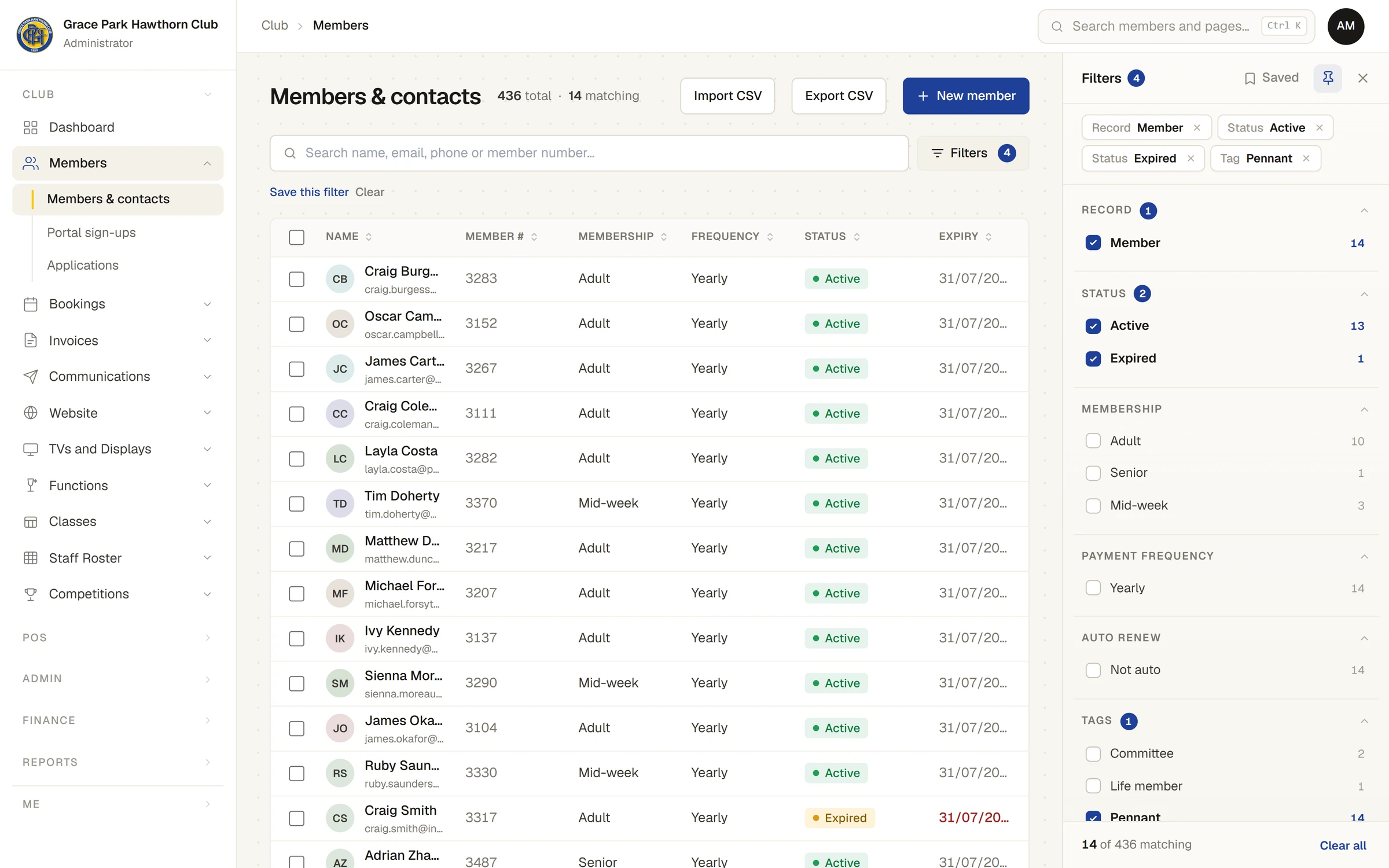
Ticks in one section widen it: Active and Lapsed together find people who are either. Ticks in different sections narrow each other: Lapsed and the tag Pennant together find lapsed people who have that tag.
The foot of the panel says, for example, 14 of 436 matching. Clear all there takes off every filter. Clear under the search box does the same and empties the search too, so the list then shows everyone, contacts included.
The panel itself
- The pin button docks the panel beside the list, or lets it float over it.
- Drag its left edge to make it wider or narrower. Double-click the edge to put it back.
- The × closes it. Your filters stay set while it is closed.
Sports Club OS remembers the panel's width and whether it is pinned in your browser.
Sort the list
Press a column's heading to sort by it: the first press sorts from lowest to highest, the second from highest to lowest, and the third puts the list back in its usual order, by surname and then first name. People with nothing in that column are always last. Member numbers sort as numbers and expiry dates as dates, and Status sorts in the order Active, Expired, Suspended, Lapsed, Cancelled.
The columns are Name (with the email address under it), Member #, Membership, Frequency, Status, Expiry and Tags. A circular-arrow icon to the left of an expiry date means the person is on Auto renew and invoice, or pays monthly. An expiry date in red has passed; one in amber is within 30 days.
Tags shows on wide screens only: from 1280 pixels wide, or 1680 with the Filters panel pinned open. Where a person has more tags than fit, the last chip says +3 or similar; point at it to see the rest.
Your browser remembers the order you chose for the next time you open the list.
Open a member
Press a person's row to open their page. See A member's record, tab by tab.
The list draws the first 100 people. Press Show more at the foot to draw more.
Download the list
Press Export CSV. Sports Club OS downloads a spreadsheet file of everyone the search and filters match, not only the rows drawn on the screen. Its columns are member number, first name, last name, email, phone, membership type, payment frequency, auto renew, status, joined, expiry, date of birth, gender, card number, occupation, address, suburb, state, postcode and tags.
To download only some people, tick them and press Export in the bar that appears. See Change several members at once.
On a phone
The list is a column of cards, each with the person's status, membership, expiry, how they pay and their tags. Filters opens the panel over the list; tap outside it to close it.
Keep a filter for next time
To come back to the same filter, save it with a name. See Save a filter and use it again.
Last checked in release 2026.10.23, on 23 October 2026.