
How to
The booking list and its filters
List bookings over any dates as a table, narrow them with the Filters panel, save a filter to use again, and download them as a spreadsheet.
Who this is for: Anyone with “See all bookings” (by default: Administrator, Head Coach, Casual Staff, Reporting).
The Booking list shows bookings over a range of dates as a table, one row each. Use it to find a booking by name, to see a member's bookings for the month, to check what was booked online, or to download bookings into a spreadsheet. It only shows bookings: to change one, press its row to open the calendar on that day.
Before you start
You need to be able to see all bookings. The Administrator, Head Coach, Casual Staff and Reporting roles can by default. Your club can change this on Roles & permissions.
Open the list
Open . It opens on today and the next 7 days, with confirmed bookings only. The number beside the heading, for example 243 bookings, is how many match.
Each row has Date, Day, From, To, Type, Venue, Booked for, Origin (Web if a member booked it online, Staff if the office did), Recurring (Weekly for a weekly booking) and Status (Confirmed or Cancelled). With the Filters panel pinned on a narrower screen, Day, Origin and Recurring are hidden to make room.
Press a row to open the calendar on that day.
Narrow the list
The boxes above the table are the quickest way:
- From and To: the dates. Changing either loads the bookings for the new dates.
- Venue: All venues, all of one sport (All squash), or one court or table.
- Type: one booking type, or All types.
- Search: part of a name, a description or a note. The list follows once you stop typing.
- Web bookings only: only bookings members made online.
- Include cancelled: cancelled bookings too, marked Cancelled.
The Filters panel
Press Filters for more. The panel opens at the side, with the same choices and more:
- Date: Today, The next 7 days, The next 30 days, The last 7 days, The last 30 days, This month, Last month, or Between two dates, with From and To.
- Search: the same as the box above the table.
- Lists to tick, each with how many bookings have that value: Sport, Venue, Type, Status, Origin, Day, Time of day (Morning (before noon), Afternoon (noon to 5pm), Evening (from 5pm)), Recurring (Weekly, One-off) and Guests (With guests, No guests).
- Booked for: type a name to find one person's bookings.
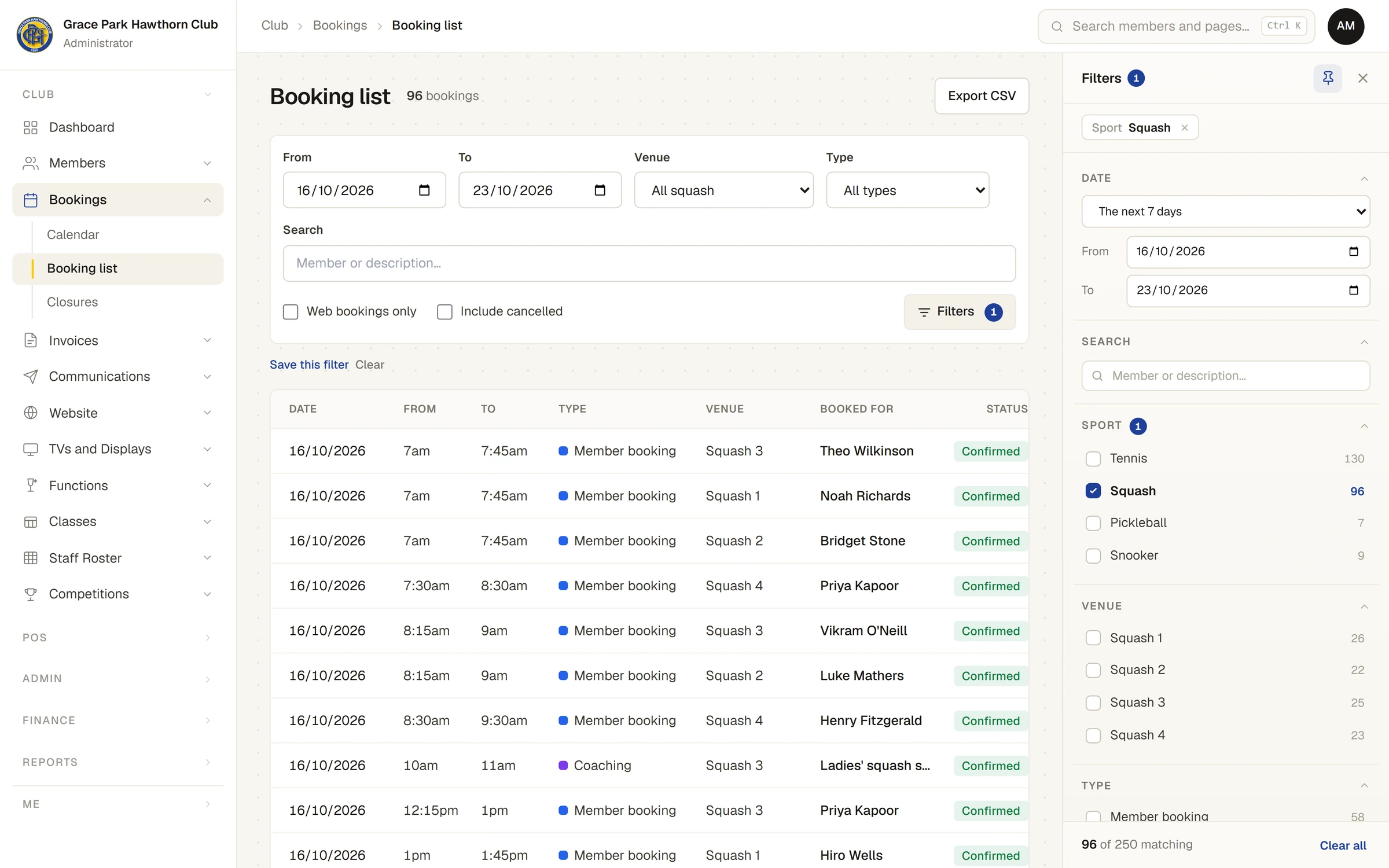
The boxes above the table and the panel are two ways to set the same filters, so changing one changes the other. Where the panel holds more than a box can show, such as two venues ticked, the box says As set in Filters.
Each filter in use shows as a chip at the top of the panel, such as Sport Squash. Press its × to take it off. The foot of the panel says how many bookings match out of those loaded, for example 96 of 252 matching, and Clear all there does the same as Clear (below). The number on the Filters button counts what differs from how the page opens.
The pin at the top of the panel docks it beside the table, or lets it float over it. Drag its edge to make it wider or narrower; double-click the edge to put it back. Press × to close it. The panel's width and pin are kept in this browser.
Save a filter
- Set the filters you want to use again, for example Sport Squash and Date The next 30 days.
- Press Save this filter, under the filter boxes.
- Type a name, for example "Squash this month", and confirm it.
The filter appears as a button under the filter boxes. Press it to apply exactly what was saved. A saved date choice such as The next 30 days is worked out from the day you use it, so it always means the coming month. Dates typed under Between two dates stay as typed.
Saving a filter with a name already used replaces it. Press × on a saved filter's button to remove it.
Clear the filters
Clear, beside Save this filter, and Clear all in the panel, put the page back to how it opens: today and the next 7 days, confirmed bookings, no search. It shows only when something differs from that.
Download the list
Press Export CSV. Your browser saves a spreadsheet file of every booking that matches, not only the rows on screen, with Date, From, To, Type, Venue, Booked for, Guests (adult guests), Origin, Recurring, Status and Notes.
A long list
The list shows 200 rows at a time. Press Show more at the foot for the next 200.
If something goes wrong
- "From is after To, so there are no bookings to show. Change one of the dates." Change From or To.
- "Enter a From date and a To date in full to see bookings." One of the dates is not complete.
- "The bookings for these dates could not be loaded." Press Try again.
- "No bookings in that range match your search and filters." Press Clear search & filters to see every booking in those dates.
Last checked in release 2026.10.23, on 23 October 2026.