
Setting up
Bring in your members from a spreadsheet or another system
Import members from a CSV file: what each column becomes, how people already there are recognised and left alone, and what an import does not bring.
Who this is for: Anyone with “Add and change members” or “See members and contacts” (by default: Administrator, Head Coach, Casual Staff, Reporting).
A club's members can come into Sports Club OS in two ways:
- Import CSV on the Members page, which the club does itself: one record for each row of a spreadsheet. It brings in people and their membership details only.
- A changeover from another system, done for the club by whoever sets Sports Club OS up, from the club's own exports. It brings the history too. See Moving from SportLogic or inTennis.
This article is about the first.
Before you start
- You need to be able to add and change members. The Administrator, the Head Coach and Casual Staff can by default.
- Set up the membership types first: Set up membership types and fees. Each row's membership type is matched to a type by its name, so the names in the file must be the club's type names. Capital letters, spaces and punctuation do not matter: "adult (family)" matches Adult (family).
- Add the club's tags first, on , Tags & fields, if the file has a tags column.
- Save the spreadsheet as CSV (in Excel: File, Save As, CSV UTF-8). Put each person on their own row, with the column headings in the first row.
- A file can hold up to 20,000 rows. Split a larger list into several files.
The columns
These headings are recognised, whatever their capital letters or spacing:
| Heading | Becomes | Also recognised |
|---|---|---|
First name, Last name | The person's name | Surname; or one Name column, split at the first space |
Email | Their email address, in small letters | Email address |
Phone | Their phone | Mobile |
Member no | Their member number | Member number, Member ID |
Membership type | Their membership type, matched by name | Membership, Type, Category |
Status | Their status (below) | Membership status |
Joined, Expiry | The dates they joined and their membership ends | Join date, Expiry date, Renewal date |
DOB | Their date of birth | Date of birth |
Address, Suburb, State, Postcode | Their address | Street, City |
Tags | Their tags, separated by ; |
Gender, Card no and Occupation are read too. Any other column is left out.
- Dates may be day/month/year (31/07/2027) or year-month-day (2027-07-31). Use four-digit years: a two-digit year is read as 20-something, which is wrong for most dates of birth.
- Status: a status containing "cancel" becomes Cancelled, "suspend" Suspended, "lapsed" or "not renew" Lapsed. Anything else, or nothing, becomes Active.
- A row with no first name, last name or email cannot be imported, and is counted as such.
Import the file
- Open and press Import CSV. The Import members from CSV panel opens.
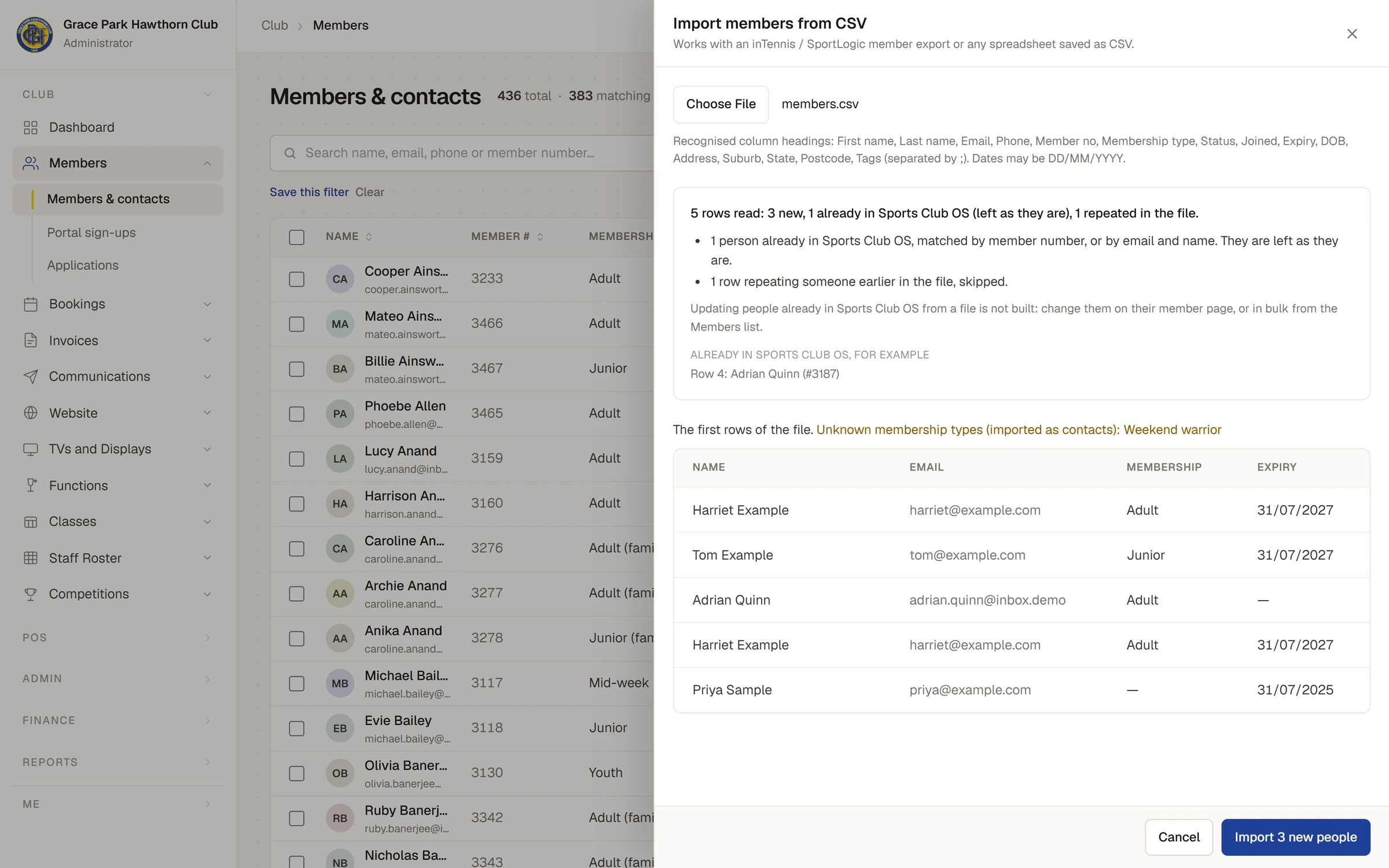
- Choose the file. Sports Club OS checks every row against the people already there before anything is imported, and says what the import will do, for example 6 rows read: 3 new, 1 already in Sports Club OS (left as they are), 1 repeated in the file, 1 with no name or email. Under it are a line for each kind of row, a few examples of the people already there (Row 4: Adrian Quinn (#3187), where row 1 is the headings), any membership types it did not recognise, and the first rows of the file.
- Check the rows. A type in Unknown membership types (imported as contacts) is not one of the club's: those people come in as contacts with no membership. To bring them in as members, press Cancel, add the type or correct the file, and choose it again.
- Press Import 3 new people (the button says the number). Only the new people are imported. While a large file goes in, the button counts the rows as they are sent.
- The panel says Import finished, with how many people were added, how many rows were skipped, and how many were not imported and why. Press Close.
Each import is recorded in the audit log, with how many records it brought in and how many were skipped or refused.
People already in Sports Club OS
Each row is matched to the people already there, and to the rows above it in the file:
- By member number, when the row has one.
- Otherwise by email, first name and last name together. All three must be the same, so two people who share an email address, such as a parent and child, are told apart by their names.
A row that matches someone already in Sports Club OS is skipped, and that person is left exactly as they are. A row that repeats an earlier row is skipped too. So importing the same file twice adds nobody the second time: the button then says Nothing new to import.
If an import stops part-way (the connection fails, say), the panel says The import did not finish and how many were added. Choose the same file again: those already added are skipped, and the rest go in.
What an import does not do
- It does not update people already there. A row for someone already in Sports Club OS is skipped, not used to change their record. Change them on their member page, or several at once from the Members list.
- It does not make households. Link each family afterwards: on each family member's Family tab, search for the person who pays. See Households: who pays for whom.
- It gives no member number to a row whose member number is blank. A member added by hand with New member is given the next number.
- It brings no history: no invoices, payments, bookings or past memberships.
- It makes no logins and sends nobody anything. Members make their own logins later, with the email address the club has for them.
- It never switches on Auto renew and invoice, whatever the club's setting for new members.
Check it worked
- On the Members list, use Filters to check the numbers by status and membership type against the system you came from.
- Open a few records and check their dates, type and expiry.
- Export CSV downloads the list as the club now has it, to compare with the file you imported.
If something goes wrong
- Everyone came in as contacts. The membership type names did not match the club's. Delete the people just imported (tick them on the list, then Delete), correct the names, and import again.
- Some people are missing. Check the result in the panel. Rows with no name and no email are not imported. A row that matched someone already there, by member number or by email and name, was skipped: check the file's member numbers are not another person's.
- "This file has more than 20,000 rows. Split it into smaller files and import each." Nothing was imported. Split the file and import each part.
- "The import did not finish" Choose the same file again to add the rest. Those already added are skipped.
- The dates are wrong. The file used month/day/year. Save it with day/month/year or year-month-day dates and import again.
Last checked in release 2026.10.23, on 23 October 2026.