
How it works
Find your way around: the menu, search and your account menu
How the side menu, the search box, the breadcrumb and your account menu work, and why your menu may differ from someone else's.
Who this is for: Anyone who signs in to Sports Club OS.
Every page of Sports Club OS has the same frame: the menu down the left side, and a bar across the top with the breadcrumb, the search box and your account menu.
The menu
The menu down the left side is in sections, each with a heading you press to fold it open or closed:
| Section | What it holds |
|---|---|
| Club | The club's day-to-day work: the Dashboard, Members, Bookings, Invoices, and folds for Communications, Website, TVs and Displays, Functions, Classes, Staff Roster and Competitions |
| POS | The Till, Sales, Till sessions, Products and POS settings |
| Admin | Users, Roles & permissions, Settings, Feedback, Export data and the Audit log |
| Finance | Bank reconciliation, the Finance overview, GST and BAS, Income in advance, Member and visitor income, Export to the accounts, and GST and prices |
| Reports | Report pages, Committee reports, Class reports and the AI Report Assistant |
| Me | Everything about you: your membership, bookings, classes, matches, invoices and purchases, and, under Staff portal, your shifts, hours and availability |
You see only the sections and links your roles allow. A member usually sees a short menu, mostly under Me; an administrator sees every section. That is why two people's menus look different. Me is always the last section.
Some links are folds of their own: pressing Communications shows Previous and Send new. Sports Club OS remembers which sections you opened or closed, in that browser. On a short screen, some sections start closed so the menu fits, and the section holding the page you are on always opens.
On a phone, the menu is hidden. Press the menu button at the top left to open it.
The breadcrumb
The top bar starts with where you are, for example Me > Make booking or Club > Functions > Function calendar. The first part is the menu section the page is in. Press an earlier part to go back to it.
Search
The search box at the top right finds pages, and members for anyone who may see the member list. Press it, or press Ctrl+K (Cmd+K on a Mac), and start typing.
It finds only the pages you may open. It does not search invoices or bookings: use the Invoices page or the Booking list for those.
On a phone, search is a button in the top bar that opens the box across it.
Your account menu
The round badge with your initials, at the top right, opens your own links:
- My details: your phone, address and emergency contact (for members).
- Email preferences: which emails you get from the club (for members).
- Password & two-factor: change your password, and turn two-factor sign-in on or off.
- Sign out.
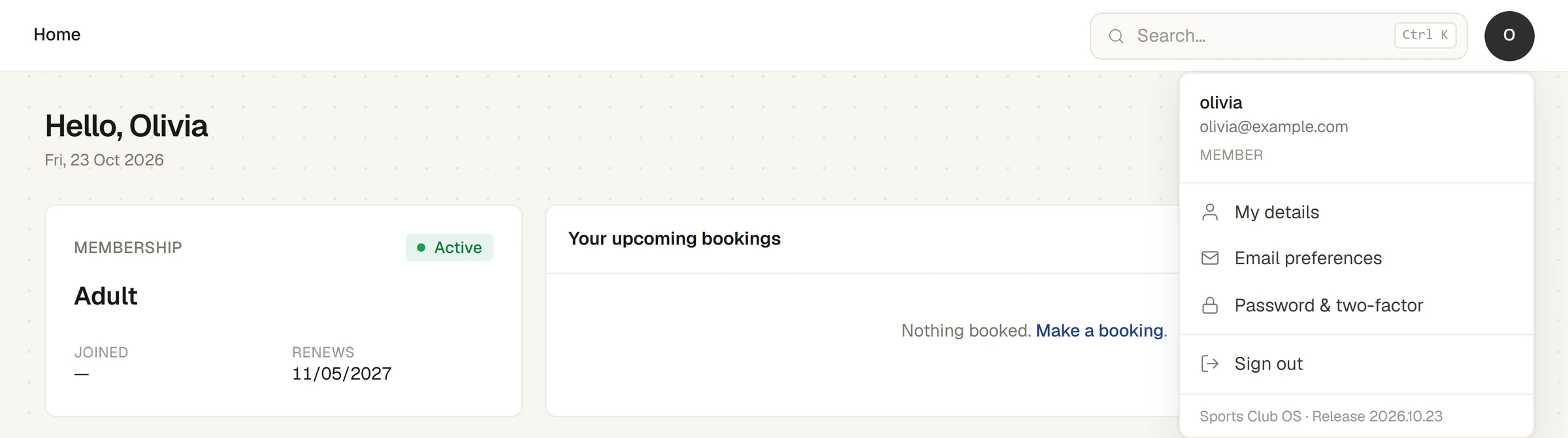
The foot of the menu says which release of Sports Club OS your club is on, for example Sports Club OS · Release 2026.10.23. The Help centre's articles say which release they were last checked against.
Help and feedback
When your club has it switched on, the Help and feedback button sits in the top bar, beside your initials. It opens a panel where you can ask how to do something in Sports Club OS, or tell the club about something you noticed. The panel stays with you from page to page, and you can drag it out of the way by its heading. See Ask Help and feedback, or tell the club what you noticed.
Feedback is kept only when you press Save it on the summary it offers you.
Last checked in release 2026.10.23, on 23 October 2026.