
How it works
The function sheet
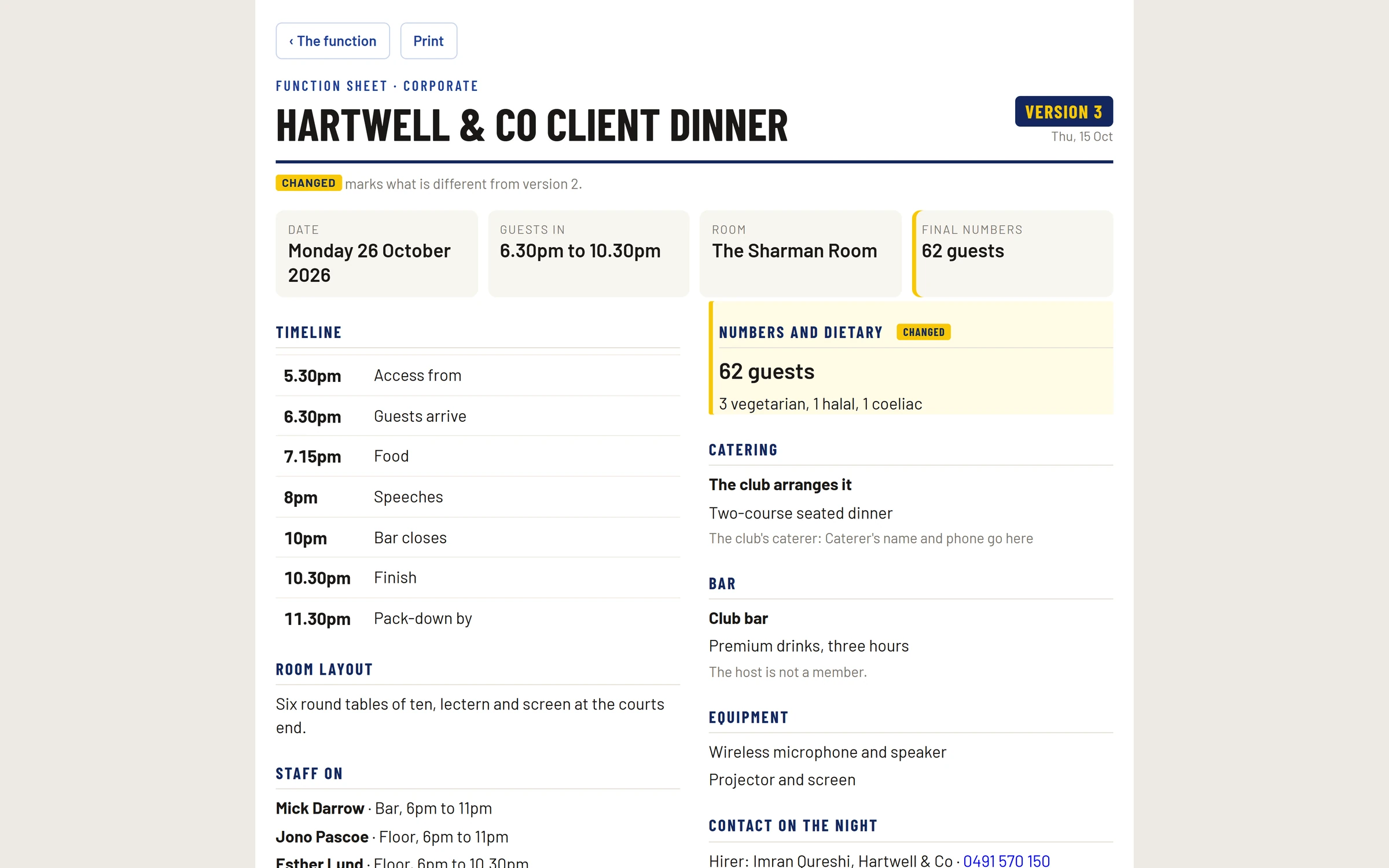
The run sheet for a function's day, for a phone or printed on A4: times, rooms, numbers, the plan, staff, catering, the bar and the contact on the night.
Who this is for: Anyone with “See functions and enquiries” or “Run functions” or “Own shifts, availability and hours” (by default: Administrator, Bar Manager, Bar Staff, Functions, Reporting, Treasurer).
The function sheet is one page that tells the bar, the floor staff and the caterer what is happening on the day. It is laid out for a phone held in one hand, and prints cleanly on A4. It shows no prices, apart from a bar tab's limit.
What it shows
- The occasion and name, its version and the day it was issued.
- The Date, when guests are in, the Room and the Final numbers (or the expected number).
- Timeline: access for set-up, guests arriving, food, speeches, the bar closing, the finish and pack-down. It starts from the function's times and the rooms' set-up and pack-down times, and the office can change it.
- Room layout, and Staff on: each person rostered, with their position and times, and whether staffing is complete, for example Staffing not complete: 1 of 2 places on the roster filled.
- Numbers and dietary, Catering (who arranges it, what was ordered and the club's caterer), Bar (club bar, a bar tab with its limit, or no alcohol, what drinks were ordered, and whether the host is a member), Equipment, and Contact on the night.
- Special notes.
Versions
The sheet is a Draft until the function is confirmed. Confirming issues version 1. After that, each change that reaches the sheet (numbers, times, the plan, staff, what is ordered) makes a new version, one a day at most, and Changed marks what is different from the version before. So a sheet printed earlier can be checked against the latest.
Change the sheet
On the function's Sheet tab, press Change the sheet. Change the Timeline lines (time, what happens and a note; Add a line, or ✕ to remove one), the Room layout, the Contact on the night ("A name and a mobile, if not the hirer") and the Special notes. Press Save the sheet. A message says Sheet saved.
Numbers, dietary needs, catering, the bar, equipment and staff come onto the sheet from the rest of the function, so change them there.
Open and print it
- From a function: press Function sheet, or Open the function sheet on its Sheet tab. It opens in a new tab.
- Press Print on the sheet to print it or save it as a PDF.
Who can open it
Anyone who can see functions can open any function's sheet; the Bar Manager can by default. A staff member with a published shift on a function can open that function's sheet from their My shifts page, and that is the only part of Functions they see. See See and answer your shifts.
Last checked in release 2026.10.23, on 23 October 2026.