
Setting up
Set up email categories and how members choose them
Decide the kinds of email members can say yes or no to, where replies go, and the words of staff text messages, before the club sends its first message.
Who this is for: Anyone with “Club settings” or “Wording of text messages” (by default: Administrator).
Every message the club sends from Sports Club OS belongs to an email category, such as Club news or Events and social. Members say yes or no to each category, and a message goes only to people who said yes (or, if the sender chooses, who have not been asked yet). One category, Essential notices, always goes out. Set the categories up before the club sends its first message, so members are asked about the right things.
Before you start
- You need to be able to change the club's settings. The Administrator can by default. The wording of text messages to staff is for the Administrator alone.
- Decide what kinds of email the club sends. Four to six categories suit most clubs; members are less likely to answer a long list.
- The address the club's emails are sent from is set when Sports Club OS is set up for your club. Decide where replies should go: usually the club office.
The categories it starts with
A club starts with Essential notices (always sent), Club news, Events and social and Competitions and coaching. What each tells members it covers is in Email preferences: who chooses what.
Set up the categories
- Open and press the Communications tab.
- Under What members can choose to be emailed about, change each category's Name and What it covers (members see this) to suit the club. Members read the second box when they choose, so say plainly what they would get.
- Press Add a category for another kind of email, or Remove for one the club does not send.
- Under Replies, type the address in Replies to club emails go to. Left empty, replies go to the address the emails are sent from.
- Press Save communications settings. A message says Communications settings saved.
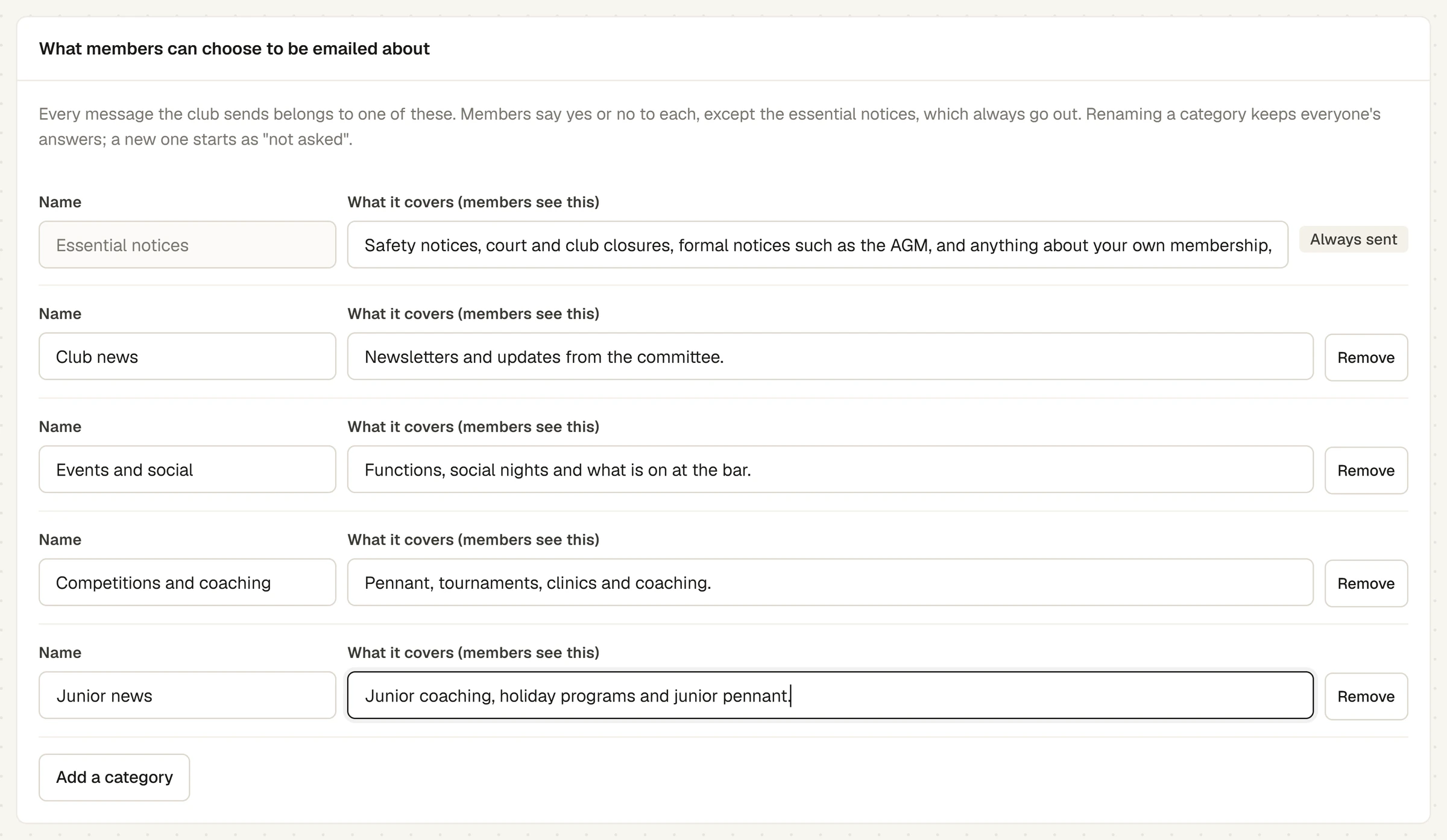
Essential notices cannot be renamed or removed, and members cannot say no to it, so keep it to what a member truly must get. The club can have up to eight categories, with at least one that members can choose. Renaming a category keeps everyone's answers; a new one starts as "not asked" for everyone. All the rules, and the messages you may see if a change will not save, are in Change email categories, the reply-to address and staff text wording.
How members choose
A member who signs in and has never answered is taken to their email preferences first, and asked about each category. Every optional email carries an unsubscribe link. The office can also change a member's choices on their member page, for example when a member asks by phone. A choice belongs to an email address, so a household that shares one address shares the choice. See Email preferences: who chooses what.
Text messages to staff
Further down the Communications tab, Text messages to staff (for the Administrator alone) holds the words of each text Sports Club OS sends bar and events staff about their shifts. The standard words suit most clubs. Read them once, and press Save text message wording only if you change something. How the wording works, with its fields and the 160-character limit, is in Change email categories, the reply-to address and staff text wording.
Check it worked
- Open your own email preferences from the account menu at the top right: each category is there, with what it covers.
- Write a message on : the Kind step offers the categories. See Write and send a message.
Next
Last checked in release 2026.10.23, on 23 October 2026.