
How to
Ask the AI Report Assistant
Ask about the club's figures in your own words, see the figures and assumptions behind each answer, and add its widget. What is sent and what is kept.
Who this is for: Anyone with “Committee reports” or “Build reports” (by default: Administrator, Head Coach, Casual Staff, Sports Convener, Reporting, Treasurer).
The AI Report Assistant answers a question about the club's figures, asked in your own words, such as "How many juniors do we have now?" or "How much income have we received this financial year, by stream, against last year?". It answers in plain words, shows the figures it looked at and the assumptions it made, and offers a widget you can add. It only reads: it changes nothing and saves nothing.
Before you start
- You need AI Report Assistant. The Administrator and Reporting roles have it by default. Your club can change this on Roles & permissions.
- Your club must have an AI model set up for the assistant and Offer the assistant ticked on the Reports tab of Settings. If either is missing, the assistant is not shown anywhere.
- It answers from the figures your roles let you see, and no others. If you could not see a figure in a widget, the assistant cannot use it either, and small groups stay hidden as "<5" as they do everywhere else.
Ask a question
For anyone who can: “AI Report Assistant”
- Open the assistant from , or press AI Report Assistant at the top of the Dashboard, Committee reports, Report pages or a report page.
- The first time, a notice says what is sent and what is kept (below). Press OK.
- Type your question in Your question, or press one of the examples, and press Ask.
The answer comes back in a few seconds. It is one of three kinds:
- An answer: the figure in plain words, a chip for each assumption it made (for example, which period it took), and I looked at 1 figure, which opens to show each figure it used. Under it, Add to my Dashboard adds the widget the answer came from.
- Suggestions: for a broad question, such as "What should I be watching each month?", up to four widgets, each with its figure, a line on why it is worth watching, and Add to my Dashboard.
- A question back: where your question could be read two ways that give very different figures, it asks which you mean, with a button for each.
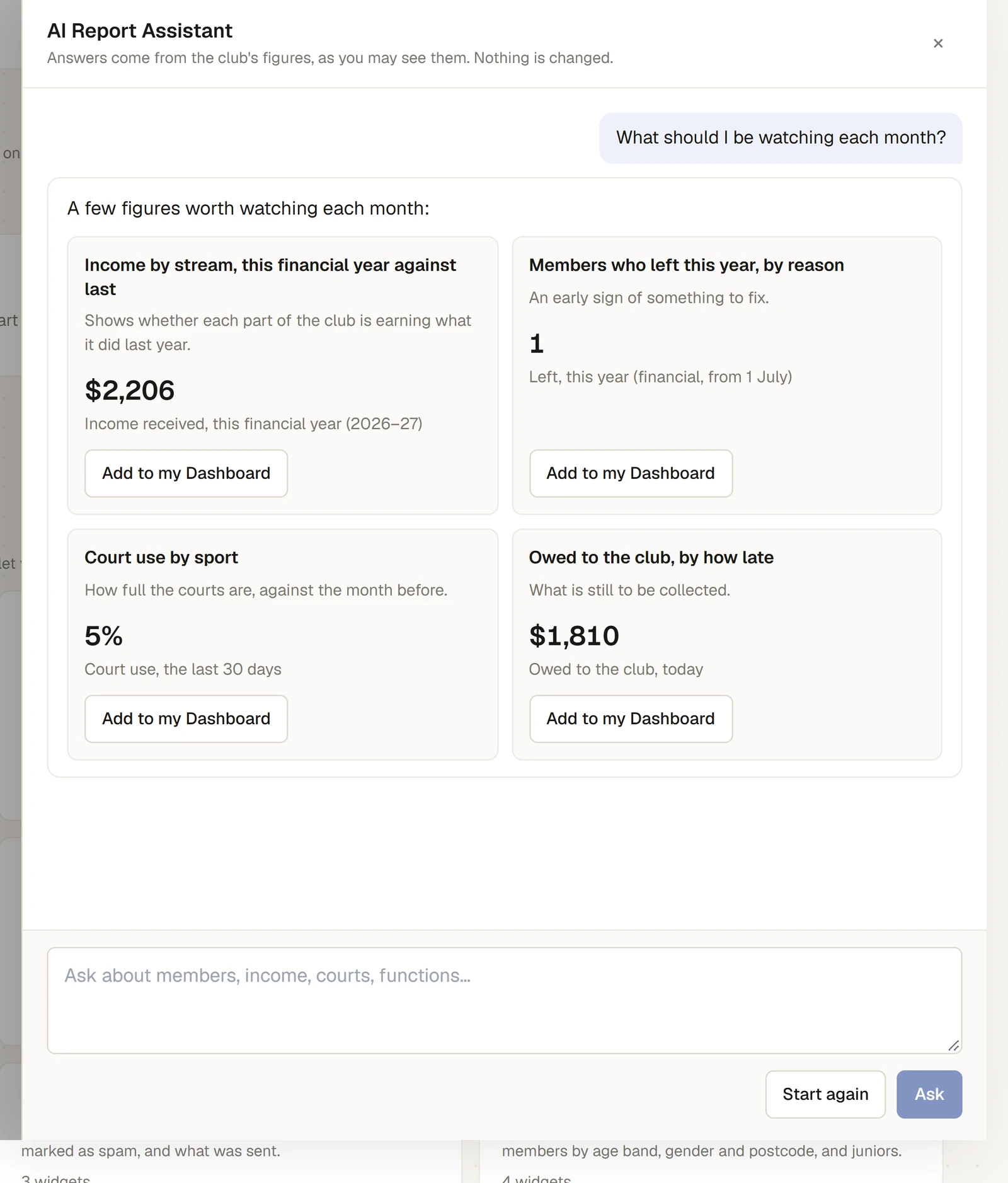
Follow it up
For anyone who can: “AI Report Assistant”
Type a follow-up such as "only squash" or "make it a line": it changes the widget from the last answer. Press Start again to begin a new question with nothing carried over.
Add the widget
For anyone who can: “AI Report Assistant”
- Add to my Dashboard puts the widget at the end of your Dashboard, if you can build reports. It then says Added to your Dashboard.
- On a report page you made, the button is Add to this page and puts it on that page.
- Once added, change it like any widget, with its pencil. The assumption chips show above its preview in the widget editor: pressing one goes to the setting it is about, and × takes it off. See Make your own widget.
Check an answer against the figures it looked at before you rely on it. The assistant can misread a question; the figures it shows are worked out the same way as any widget's.
What is sent, and what is kept
- Sent: your question and the figures needed to answer it go to an AI model in your club's own cloud account. The cloud provider does not train the model on them and does not share them with the model's maker.
- What the figures can include: to answer, the assistant may look at the rows behind a figure, such as a list of payments or the names of members who joined, but only the rows and columns your roles let you open yourself. Anything your roles do not let you see is never sent. Dates of birth, email addresses, phone numbers, street addresses, card numbers, notes and medical notes are never sent, whoever is asking.
- Kept by Sports Club OS: neither your question nor the answer. Closing the panel or reloading the page clears the conversation. The audit log records that a question was asked, by whom, which kinds of figures it used and how it ended, never the words of the question or the answer.
- It changes nothing. It cannot add, change or delete a record. The only thing it can do for you is offer a widget, which is added only when you press the button.
For what Sports Club OS keeps about people more generally, see What Sports Club OS keeps, and who can see it.
Limits
Your club sets these on the Reports tab of (see Change the reports settings):
- one question at a time for each person;
- a number of questions a minute for each person (6 unless changed);
- a number of questions a day for the whole club (200 unless changed);
- a spending limit each month (US$20 unless changed).
If something goes wrong
- "Your last question is still being answered." Wait for the answer before asking again.
- "That is 6 questions in a minute. Please wait a moment." You have reached the questions you may ask in a minute.
- "The club has asked the assistant its 200 questions for today. It can be asked again tomorrow." The club's daily limit is reached.
- "The assistant has reached this month's spending limit, set in Settings, Reports." It can be asked again next month, or once the limit is raised.
- "The assistant could not answer just now. Please try again." Ask again; if it keeps happening, tell your club's administrator.
- There is no AI Report Assistant button. You do not have the permission, or your club has not switched the assistant on.
Last checked in release 2026.10.23, on 23 October 2026.