
How to
Make a tag rule
Make a rule that tags members automatically, see how many it would tag before saving, run it now, and see what each run added and took off.
Who this is for: Anyone with “Dynamic tag rules” (by default: Administrator).
A tag rule gives its tag to everyone its conditions hold for, every night. You build it in a side panel that counts, as you go, how many people it would tag. See How tag rules work for what each condition means.
Before you start
- You need to be able to make tag rules. The Administrator can by default; your club can give it to other roles on Roles & permissions.
- To see the names behind a count, you also need to be able to see members.
Start from a suggestion
The Tag rules tab lists Suggested rules, such as Squash player, Lapsed player, New member, Ageing out, Payment follow-up and Bounced email, each with what it would do in words. Nothing is switched on until you save it.
- Open and the Tag rules tab.
- Press Add… under a suggestion. The side panel opens with the suggestion filled in.
- Change anything you want, as below, and press Save.
Make a rule of your own
- On the Tag rules tab, press New rule. A side panel opens headed New tag rule.
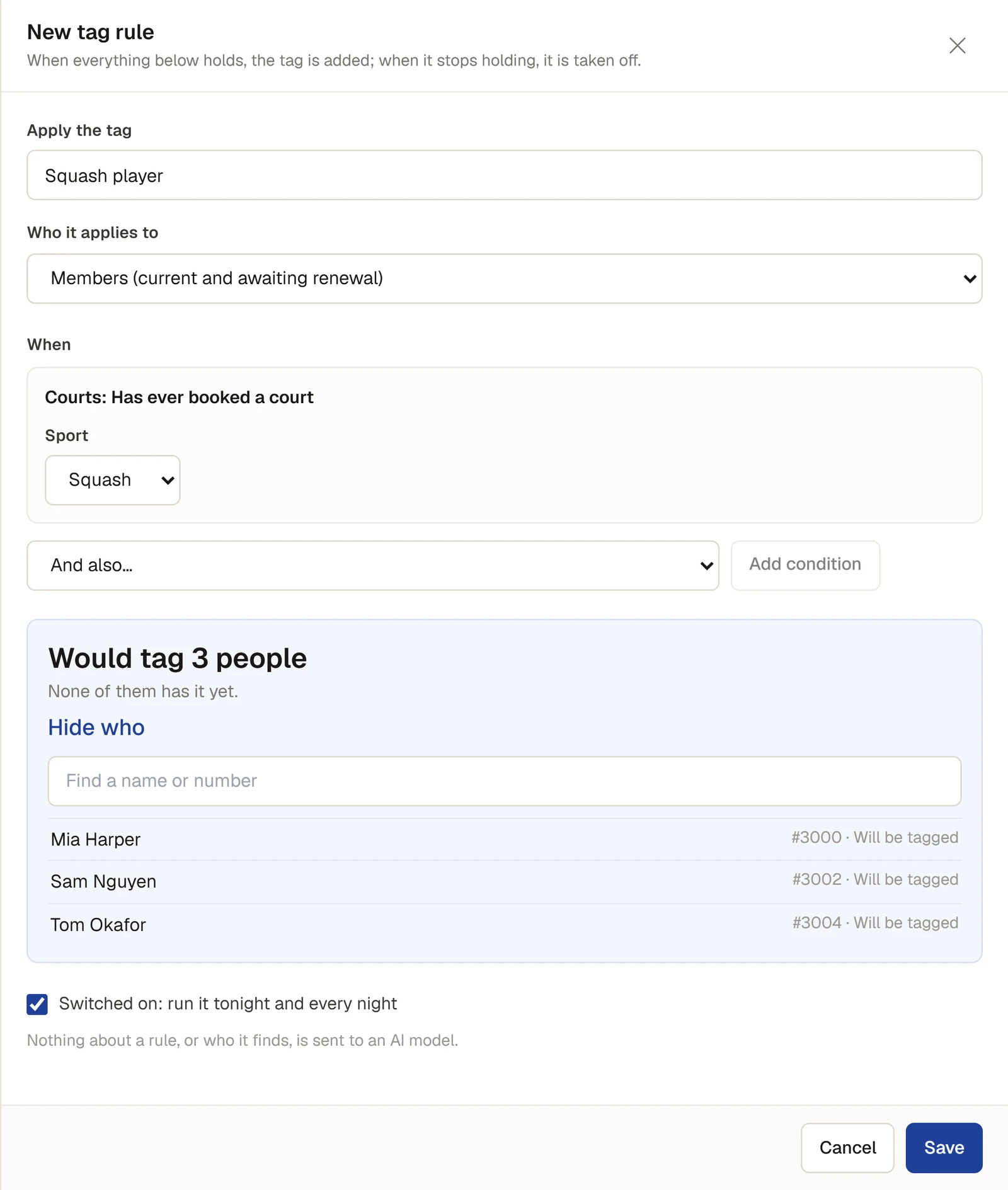
- In Apply the tag, type the tag, for example "Squash player".
- In Who it applies to, choose who the rule looks at. Members (current and awaiting renewal) suits most rules.
- Under When, the first condition is Courts: Has ever booked a court. Set its choices, such as the sport.
- To use another condition instead, add it and press Remove on the first. To add one, choose it in And also… and press Add condition. A rule has up to five, and all of them must hold.
- Below the conditions, the count says, for example, Would tag 3 people and None of them has it yet. It changes a moment after each change you make.
- Press See who to list them, each marked Will be tagged, Has it already or Will lose it. Type in Find a name or number to look for someone. Press a name to open their page.
- Leave Switched on: run it tonight and every night ticked, or untick it to save the rule without running it.
- Press Save. A message says Rule saved. It runs tonight, or press Run now.
A condition about age or money shows a note under it: Everyone who can see members will see this tag, and it says something about this person's age. (or money). Think about whether the tag should exist before saving it.
Run the rules now
Press Run now at the top of the Rules card. It says Running… until the run ends, then a message says, for example, Tag rules run: 3 added, 0 taken off. Every switched-on rule runs, not only the one you just made.
See what a run changed
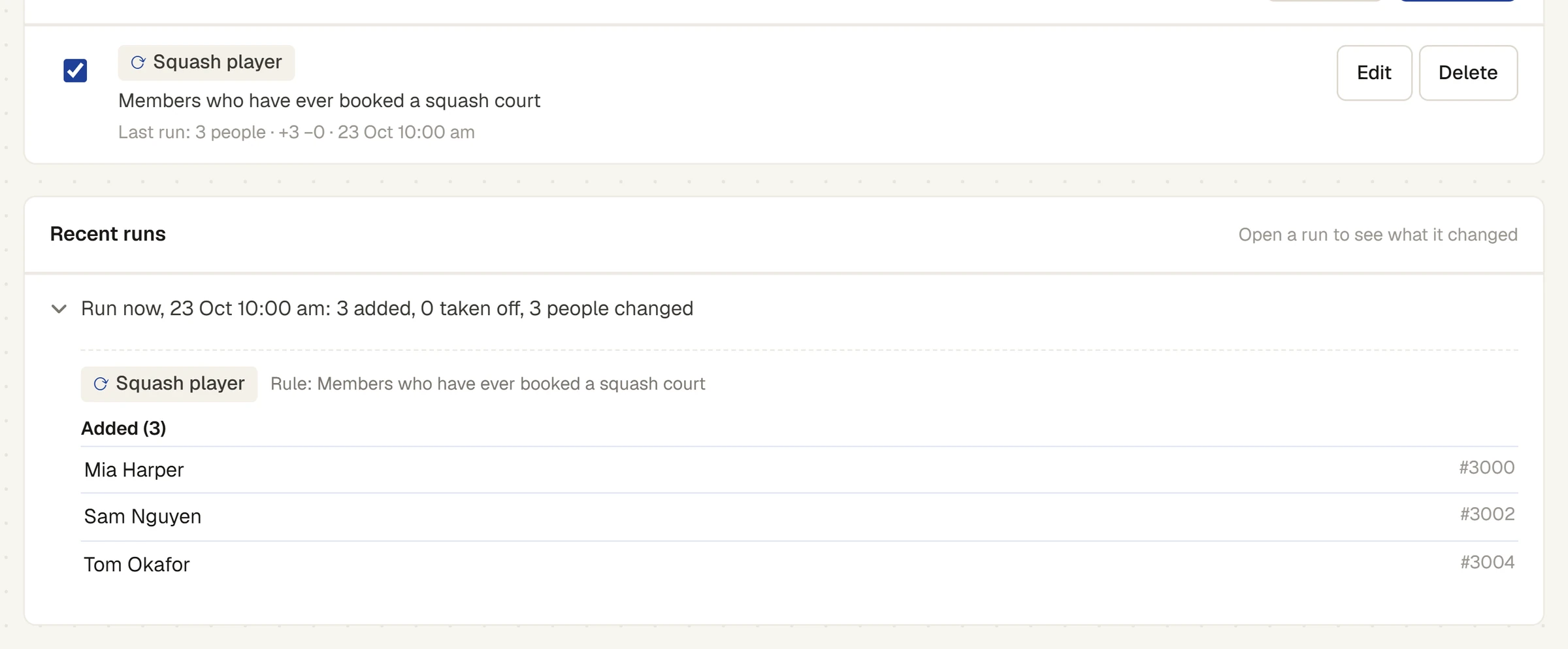
Under Recent runs, each run has a line such as Run now, 23 Oct 10:05 am: 3 added, 0 taken off, 3 people changed. Press it to open it: for each tag it lists the rule, and who was Added and Removed, with the number of each. Press Show more for the next hundred names. Press the line again to close it.
Without the permission to see members, the run shows the numbers and says Names need the permission to see members; the counts are shown.
Change, switch off or delete a rule
Each rule in the list shows its tag, what it does in words, and Last run: with how many people hold it and how many were added and taken off.
- Change it: press Edit, change it, and press Save. The change takes effect at the next run.
- Switch it off or on: use the tick box at the left of the rule. Switching off says Switched off. Its tags come off at the next run.
- Delete it: press Delete, then Press again to delete. A message says Rule deleted. Its tags come off at the next run; tags given by hand stay.
If something goes wrong
- New rule is greyed out. The club has 50 rules, the most it can have. Delete one first.
- The count says a number must be in a range, for example Days must be a whole number from 1 to 3650. Change the number.
- "Say how many monthly payments missed, or how many days overdue, or both." The payments condition needs at least one of its two numbers above 0.
- A run says it stopped with an error. It is tried again that night. Its line says stopped with an error.
Last checked in release 2026.10.23, on 23 October 2026.