
How to
From an enquiry to a quote
Enter an enquiry, build its quote from packages and items, preview it as the hirer will see it, and send it, which holds the rooms.
Who this is for: Anyone with “Run functions” or “See functions and enquiries” (by default: Administrator, Bar Manager, Functions, Reporting, Treasurer).
Every function starts as an enquiry: from the club's public venue page, or typed in by the office when someone phones or comes to the counter. You build the quote on the function's Quote tab, check it with Preview quote, and send it. Sending emails the hirer a link to their quote and holds the rooms for them until a date.
Before you start
- You need to be able to run functions. The Functions role and the Administrator can by default.
- The club's rooms, items, packages and terms are set on , Functions tab. See Function settings.
Enter an enquiry
An enquiry from the public venue page arrives on the board under New by itself, and the office is emailed. To type one in:
- Open and press New enquiry. A panel opens: "By phone or at the counter: the same questions as the public form."
- Under Who is it from?, search members and contacts by name, email or company, and press the right person. If they are not there, press Not a contact yet: add them and type their Full name, Email, Phone and any Company or group. "A hirer who is not a member becomes a contact, so their invoices and history are kept."
- Choose the Occasion, the number of Guests, the Date, the Start and the Finish.
- Under Room, if they know, tick the room. With a date chosen, a dot beside each room shows whether it is free, held or booked at that time.
- Choose the Catering (The club arranges it, The hirer deals with the caterer or No catering), the Alcohol (Club bar, Bar tab or No alcohol) and How did they hear?, and type any Notes.
- Press Add the enquiry. A message says Enquiry added, and the function opens.
Nothing is emailed to the hirer for an enquiry the office types in. Its first reply is on the Messages tab, marked Not emailed.
Build the quote
- On the function's Quote tab, choose from Add a package or an item. Packages come first, then the items in their groups (Room hire, Catering, Drinks, Equipment, Staff, Other), each with its price and its member price.
- Press Add. Until you do, the tab says Not on the quote yet: press Add.
- Repeat for each item. Per-head lines follow the number of guests. Change a line's quantity or price in its row, or press ✕ to remove it.
- For something not in the list, type it under Something not in the list, type its price, and press Add on that row.
- Set the rest beside the totals:
- Minimum spend: tick it, type the amount and tick the groups it is counted over. "If those lines come to less, the difference shows as its own line."
- Deposit: Per cent of the total or A fixed amount ($). It starts at the club's rule.
- Bond ($): "Held apart from the total. Not income, and no GST on it."
Each change is saved as you make it. The tab says Saving…, then All changes saved. The totals show the Subtotal, Total, Includes GST of, the Deposit and the Balance with its due date.
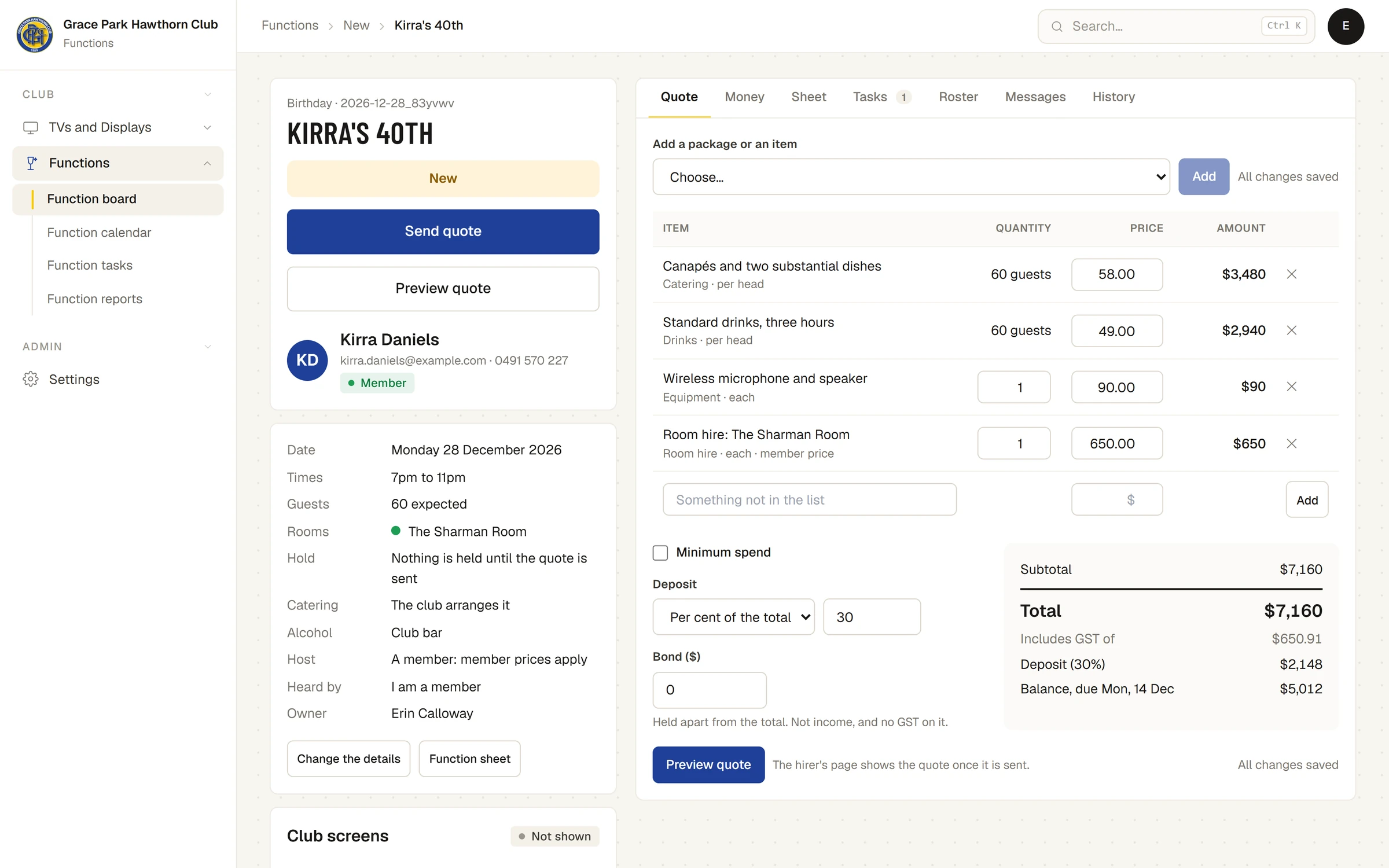
When the host is a member, member prices are used, and the line says member price. This is The host is a member (member prices) under Change the details.
Preview the quote
Press Preview quote (beside Send quote, or on the Quote tab). A window opens marked Preview: not sent, showing the hirer's page exactly as they will see it at their link: the date, time, room and guests, how long the date is held, what is included, the terms, the quote and Accept this quote. "No link has been made and nothing has gone to them."
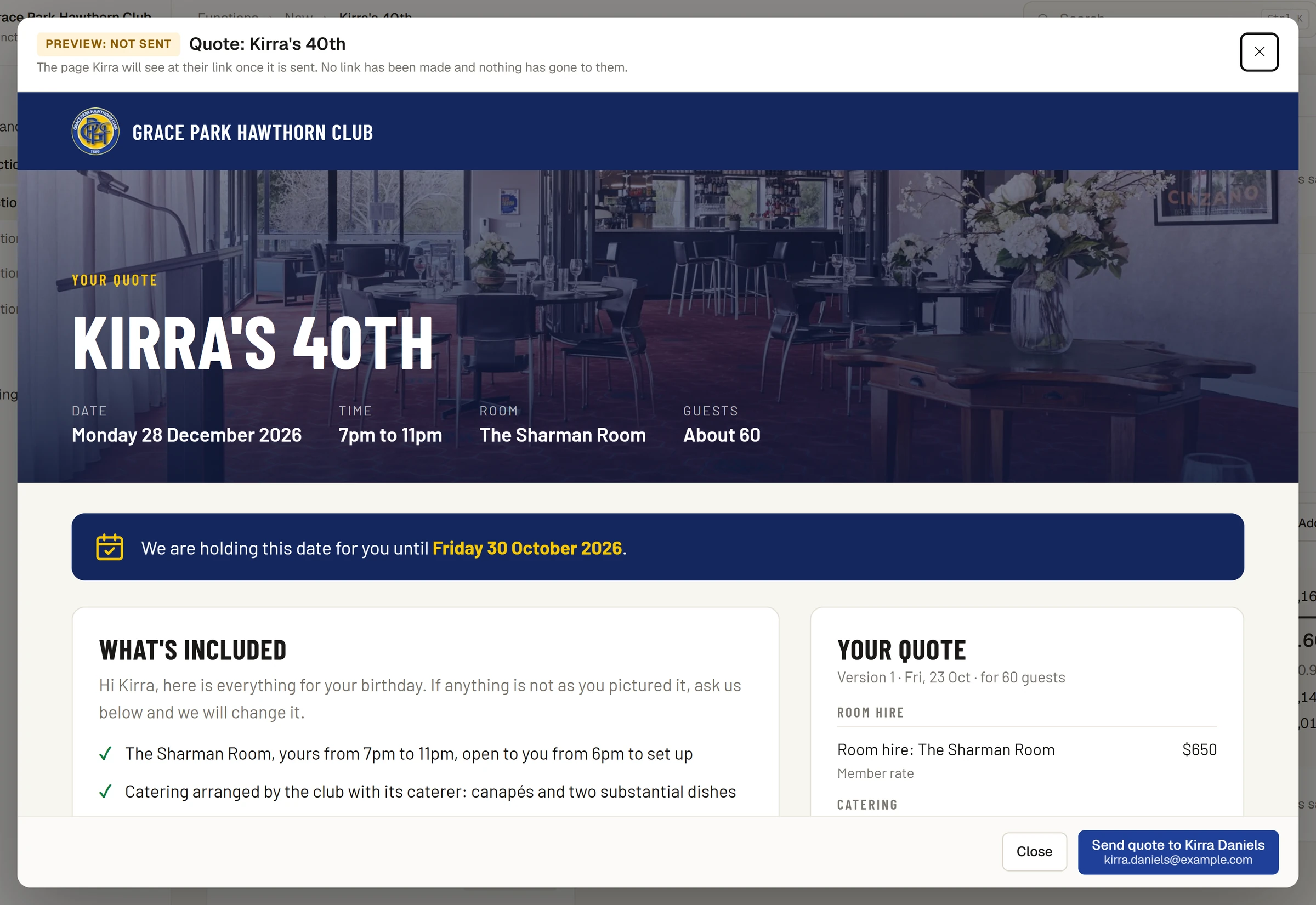
If something would stop the send, the foot of the window says what, and its send button is greyed. See "If something goes wrong" below.
Send the quote
- Press Send quote on the function, or Send quote to … in the preview. The button under it shows the email address it goes to.
- A message, or the preview's notice, says the version was sent, for example Version 1 sent to Tessa Pemberton … The rooms are held until Friday 30 October 2026., and Emailed.
The function moves to Quoted. The hirer is emailed a link to their quote, and the date is held for them. See How holds, acceptance and the deposit work. If the function has no email address, the quote is sent without an email; press Open the hirer's page to get a fresh link to give them yourself.
Change a quote after sending
Change the lines on the Quote tab as before. The tab says, for example, Changed since version 1 went to the hirer. They still see version 1 until you send this. Press Send the updated quote (or, once accepted, Re-issue). Each version is kept under Versions sent, with its total, guests and what changed.
If something goes wrong
- "Not sent: this function has no room yet." Sending a quote is what holds the room. Tick the room under Change the details and press Save, or press the note's button on the Quote tab when the quote's room hire names a room.
- "Not sent yet: this quote will hold …, though its room hire is for …" The rooms the quote holds are the function's, not its room-hire lines. Press send again to go ahead, or put the rooms right first.
- "… has not been added to the quote yet. Press Add to put it on, or clear it, then send." Something chosen is still waiting for Add.
- "Add something to the quote first" The quote has no lines.
- "… is booked for … at that time" Another function has that room booked. Choose another room or time.
- The preview's send button is greyed, and the foot says sending a quote needs a permission, naming it. You can see functions but not run them, so you can read and preview a quote but not send it. Ask whoever looks after roles at your club to give you the permission to run functions: the Functions role has it by default.
- The tab says a change may not have been saved. Sports Club OS could not be reached. It checks again by itself every few seconds and when the connection returns; sending waits until it has.
Last checked in release 2026.10.23, on 23 October 2026.