
How to
Start a draft and edit the page
Start a private draft of the club's website, then change it on the page itself - type over words, swap pictures, and move, copy, remove or add blocks.
Who this is for: Anyone with “Change the website” (by default: Administrator, Website Editor).
A draft is a private copy of the whole website. You change it on the page as a visitor would see it, and each change is saved as you make it. Nothing is public until an approver publishes the draft.
Before you start
- You need to be able to change the website. The Website Editor and Administrator roles can by default. Your club can give it to other roles on Roles & permissions.
- Only one draft can be open at a time. If someone else has one open, the Website page says Draft v6 is open, started from version 5 by Hannah Brooks. Only one draft can be open at a time. (with its own number and name). Press Go to draft v6 to work in it with them, rather than starting another.
Start a draft
- Open . The page shows Live now: the version the public sees, when it was published and by whom, and Open the live website.
- Press Start a draft. The button says Making your draft… while it copies the website.
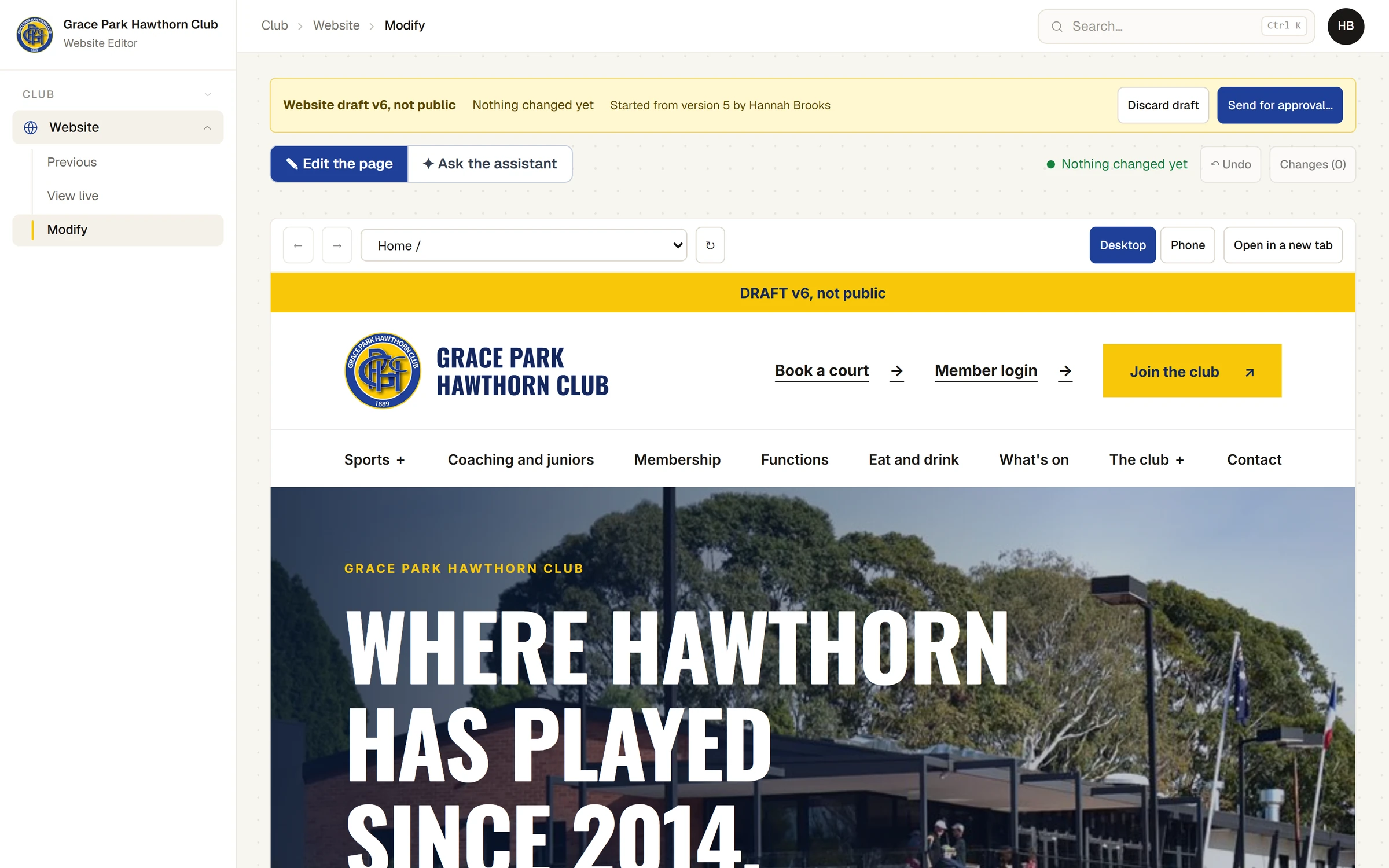
- The draft opens. The bar across the top says Website draft v6, not public, how many pages or files now differ from the live site, and which version it started from. The draft itself fills the page below, with a band across its top that says DRAFT v6, not public.
A new draft's private address can take up to a minute to start working. Until then the page says Getting your draft ready. Its private address takes up to a minute to start working…
Edit the page
✎ Edit the page is where a draft opens. Above the draft:
- The list of pages, with ← and → to go back and forward, and ↻ to load the page again. You can also follow the draft's own links.
- Desktop and Phone, to see the page at a computer's width or a phone's.
- Open in a new tab, to see the draft full size.
Change words
- Click any words on the page. A small bar appears above them with B (bold), I (italic), Link, a list to make the words a Heading, Small heading or Paragraph, and Done.
- Type. Enter starts a new paragraph; Shift and Enter starts a new line in the same one.
- To make a link, select the words, press Link, then choose Link to a page of the site, or type an address, an email address or a phone number, and press Apply.
- Press Done, or click anywhere else. The change is saved. Press Esc instead to put the words back as they were.
Change a picture
- Click a picture. Choose a picture opens, with every picture the website already has. Type in Search the pictures to find one.
- Click the one you want. Under What does the picture show? Leave this empty if it is only decoration., say what it shows, for people who cannot see it.
- Press Use this picture.
To use a new picture, press Add a new picture…, then Choose a picture from this computer. Tick This picture is ours to use. If there are people in it, tick There are people in it, and then Everyone shown has agreed, and no child is named: it cannot be added without both. Press Add it. The approver is shown your answers when the draft is sent.
Move, copy, remove or add a block
A page is made of blocks, one under another: the picture and headline at the top, a row of cards, a list of facts. Point at a block and a bar appears at its top right, with the block's name and:
| Button | What it does |
|---|---|
| ↑ and ↓ | Move the block up or down the page |
| Copy | Make a copy of the block below it |
| Remove | Take the block off the page. Press it again (Click again to remove) to be sure |
| + Add block | Opens Add a block: choose one of the website's own kinds of block and press Add below. It comes with example words and pictures, which you then change by clicking on them |
| </> | Edit this block as HTML, for someone who knows HTML. Only the website's own building blocks can be used: no scripts, styles or forms. If it cannot be saved you are told why and the block is put back |
| ✦ Ask | Switches to the assistant, with your request already started: "On the Squash page, in the part headed …" |
Inside a block, something that repeats, such as a card or a row, has a smaller bar of its own: ↑, ↓, Copy and ✕.
Saving and Undo
You never press Save. Above the draft, the page says Saving… while a change goes, then All changes saved in this draft.
- ↶ Undo steps back the latest change. Press it again to step back the one before.
- Changes (3) lists every change in the draft, newest first: ✎ for a change made on the page, ✦ for one asked of the assistant, who made it and when. Only the latest can be undone; undone ones are struck through.
What cannot be edited on the page
- The menu and the footer are the same on every page. Clicking them says The menu and the footer are the same on every page. Ask the assistant to change them.
- News cards and events put on a page from the website's news and events say This comes from the site’s news and events. Ask the assistant to change it.
- Parts the website's own script works with, such as the functions enquiry form and the What's on buttons, say This part is fixed, because the site’s own script works with it. Ask the assistant if it needs changing.
- The join page and the list of news are put together by the website itself, so there is nothing on them to edit by hand.
- A page's title in the browser tab cannot be edited on the page. Ask the assistant.
For all of these, see Ask the assistant to change the website.
Throw a draft away
Press Discard draft in the bar at the top, then Discard, then Yes, discard it. The page warns first: Every change made in this draft will be lost. This cannot be undone. Press Keep it at either step to stop.
If something goes wrong
- A red message says "That could not be saved." or gives a reason. The change was not kept and the page shows the draft as it was. Try again, or ask the assistant.
- "A request is still being worked on. Wait for it to finish, then try again." The assistant is changing the draft. The page says The assistant is working on this draft. Wait for it to finish before changing the page. until it has finished.
- "This draft was started before the page editor was added." Discard the draft and start a new one to edit on the page; asking the assistant still works.
- You cannot change anything, and the bar says "Waiting for approval". The draft has been sent. See Send a draft for approval to take it back.
Last checked in release 2026.10.23, on 23 October 2026.