
How to
The office timetable and its alerts
See every class session, deal with what needs the office, book or cancel anyone's place, change or cancel a session, and change a whole week at once.
Who this is for: Anyone with “Run classes” or “Book and take rolls for anyone” (by default: Administrator, Head Coach, Casual Staff).
The office timetable shows every class session, with who is booked, and lists at the top the things the office needs to deal with. From a session you book or cancel anyone's place, let someone in from the waitlist, open the roll, change the session or cancel it.
Before you start
You need to be able to book and take rolls for anyone. Casual Staff and the Head Coach can by default. Changing a session, Change a week, New class and Stop this class are for whoever runs classes: the Head Coach by default. Your club can change this on Roles & permissions.
Open the timetable
Open . The heading says how many sessions are shown and how many of their places are booked, for example 3 sessions · 28 of 34 places booked.
- ‹ and › move a day (or a week), and Today comes back to today.
- Day or Week chooses how much is shown.
- By place shows a day with a column for each court or room and the times down the side. Court bookings made by members show as Booked by a member, so you can see what else is on. In a week, By day shows a column for each day.
- List shows the same sessions as a table, with the date, time, class, coach, place, how many are booked and its flags. opens it straight away.
- The sentence under the buttons narrows what is shown: Showing all classes with any coach at any place. Choose a kind of class, a coach or a place in it.
Each session shows its time, name, coach and booked places, such as 6/10, and its flags: Full, 2 waiting, Cover, Below minimum, Roll not taken, Cancelled, and Check where the coach's Working with Children Check needs attention.
What needs the office
The box at the top, for example 13 things need the office, lists:
- Roll not taken: a session finished with people not marked. Open the roll opens it to take it now.
- A session below its minimum inside its decision time, with Run it and Cancel it.
- A session that does not hold a court, with the reason, for example a court closed for repairs. Open it opens the session.
- A class waiting as a draft, with Open it.
- A fee taken off after its invoice was paid, so the member is owed it back, with Invoices.
- A coach's Working with Children Check that has expired, is about to, or is not recorded, when they are down to take junior sessions in the next two weeks, with See coaches.
Notices to the office are only shown here. Sports Club OS does not email them.
A session
Press a session. Its panel shows the class, the date and time, the place and coach, how many are booked and its flags.
- Open the roll opens the roll for the session. See Take the roll on your phone.
- Booked lists each person with how their place is paid, for example $22 on account or Term. Cancel, then Press again, cancels that person's place. The message says what happens to what they paid, the same as when a member cancels.
- Waiting, in order lists the waitlist. Move up moves someone up one place. Let in gives someone a place straight away when there is one free, or when a place has been offered to them.
- Book someone in: type a name, then press Book, or Add to waitlist if the session is full. Each person found says whether they can come, for example Juniors 9 to 12. The office can book outside the class's booking window, and the person is told by email.
Change a session
- Press Change this session.
- Change the Coach, the time it Starts, the number of Places, or Where it is.
- Choose This session only or This and all after. A different coach for one session shows as cover, "Priya (for Tom)". Sessions already changed by hand keep their changes.
- Press Save.
A clash is shown before you save: another session in the same place, a member's court booking, or the coach somewhere else. A clash of place stops the save; a clash of coach can still be saved.
Stop this class, then Press again: no more sessions, ends a repeating class. No more sessions are made, and coming sessions nobody has booked are taken off the timetable. Coming sessions with people booked stay on, and the message says how many, for example Stopped. 2 sessions with people booked are still on: cancel them to tell everyone.
Cancel a session
- Press Cancel it.
- Under Why, choose Wet courts, Coach away, Not enough people or Something else. The note that goes to everyone booked is filled in for the reason. Change it if you like.
- Read what will happen, for example 3 people will be told. 3 make-up credits will be given.
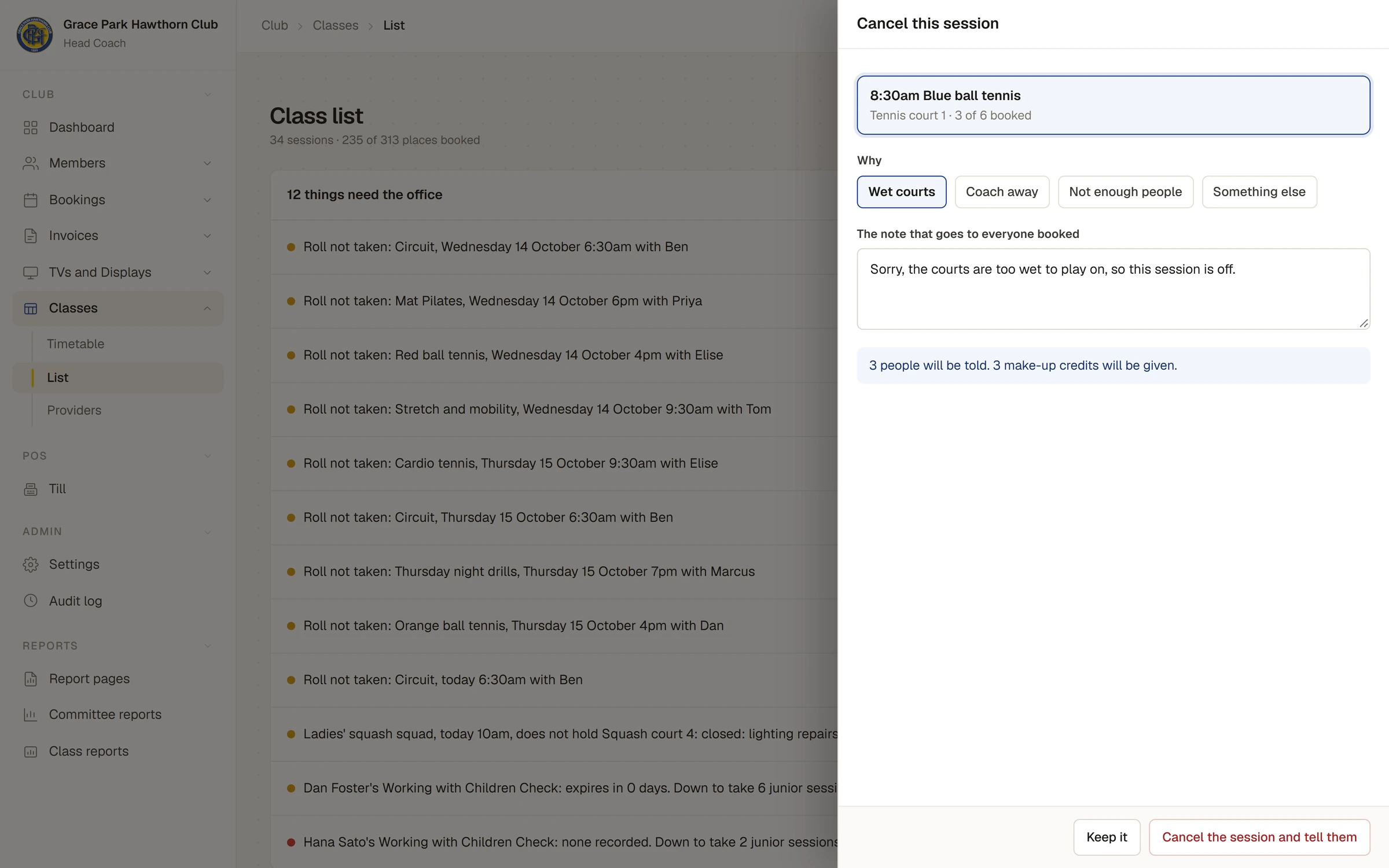
- Press Cancel the session and tell them, or Keep it.
Everyone booked is emailed the note. Pass sessions go back on the pass, fees on an account come off it, and children enrolled for the term get a make-up credit where your club's settings give one. A session's court is let go on the booking calendar.
Change a week
For a holiday week, or a coach who is away:
- Press Change a week. The panel lists every session in the week, each with a tick box.
- Tick the sessions to change. Tick everything taken by ticks one coach's sessions; Tick all and Clear tick or untick everything.
- Choose Set a cover coach and Who is taking them?, Move place and Move them where?, or Cancel them.
- Press Change 4 sessions, or for cancelling, Cancel 4 sessions…, which opens the cancel panel above for all of them.
Messages
Messages, on the timetable, lists what was sent about classes for the last six weeks: when, to whom, what it was about and the words. Choose a kind from Every kind to see one kind only. Each message says whether it was sent and, if not, why, for example when the person has no email address or has switched those emails off.
Also on the timetable
- Terms: see Terms and enrolment.
- New class: see Make a class.
- The public page opens the public What's on page, and Foyer screen opens today's classes as a TV shows them. See The public What's on page.
If something goes wrong
- A session shows Check. The coach's Working with Children Check has a problem. Fix it on , Coaches: see Providers, coaches and who collects the fees.
- The timetable says "There are no classes yet". Your club has not made any. Load the starting timetable puts in sample classes with made-up coaches, and Make the first class starts your own.
Last checked in release 2026.10.23, on 23 October 2026.