
How to
Make a display
Make a slide show for the club's TVs from a ready-made start: messages, pictures, opening times, coming events, courts now and classes today.
Who this is for: Anyone with “Make and change displays” (by default: Administrator, Head Coach, Casual Staff, Sports Convener, Functions).
A display is a slide show for the club's TVs. You start from a ready-made one, change its words, add or remove slides, and it is saved as you go. A TV then shows it, either from the Displays page or from the display's own link.
Before you start
- You need to be able to make and change displays. The Administrator, Head Coach, Casual Staff, Functions and Sports Convener roles can by default. Your club can change this on Roles & permissions.
- Anyone who can make displays can change or delete anyone's display.
Start a display
- Open .
- Press New display. A panel opens: Pick one to start from. Everything in it can be changed.
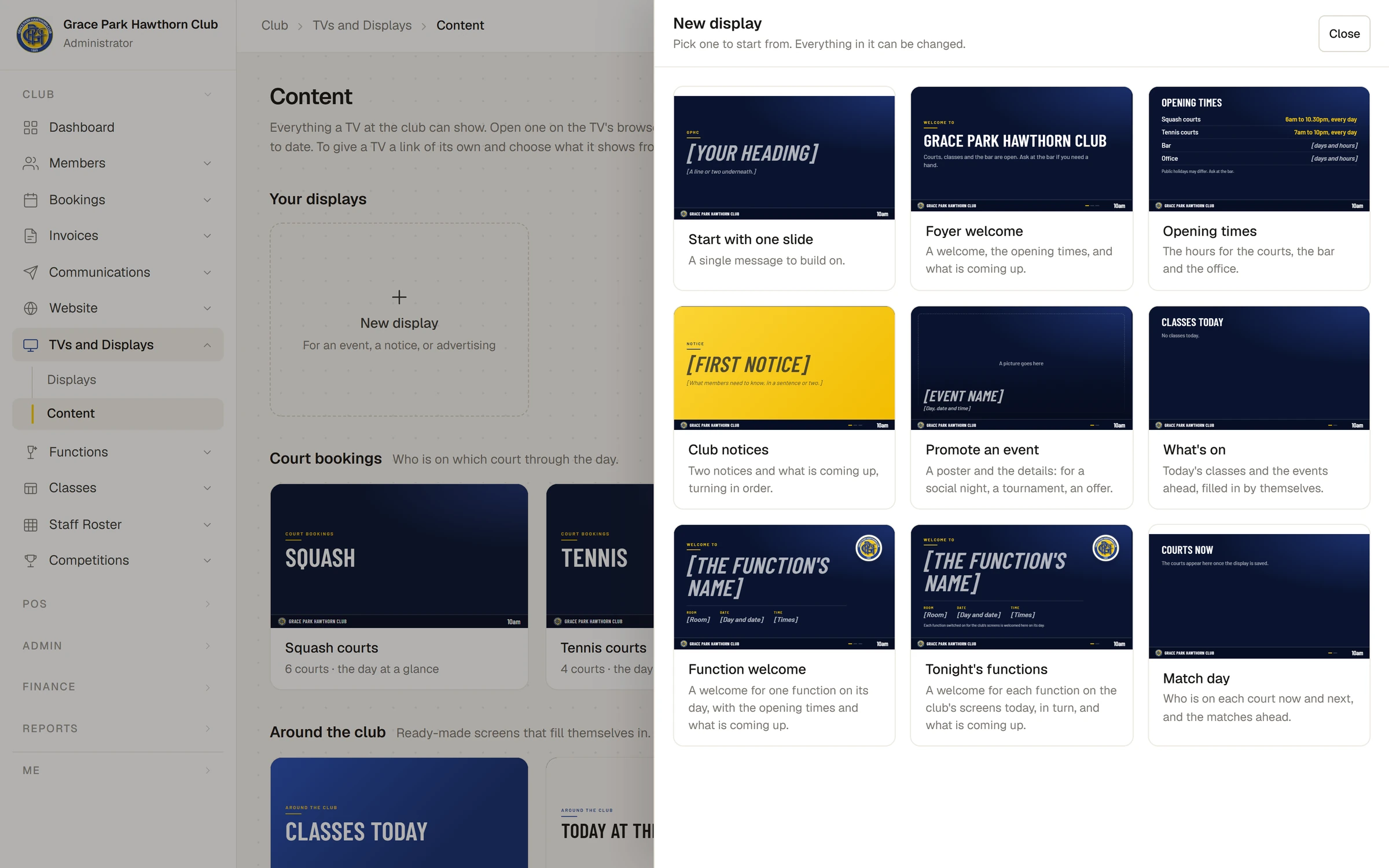
- Press the one closest to what you want:
| Ready-made | What it holds |
|---|---|
| Start with one slide | A single message to build on |
| Foyer welcome | A welcome, the opening times, and what is coming up |
| Opening times | The hours for the courts, the bar and the office |
| Club notices | Two notices and what is coming up, turning in order |
| Promote an event | A poster and the details: for a social night, a tournament, an offer |
| What's on | Today's classes and the events ahead, filled in by themselves |
| Function welcome | A welcome for one function on its day, with the opening times and what is coming up |
| Tonight's functions | A welcome for each function on the club's screens today, in turn, and what is coming up |
| Match day | Who is on each court now and next, and the matches ahead |
The display editor opens with the new display.
The display editor
![The display editor for Foyer welcome. Down the left, its three slides and Add a slide. In the middle, the chosen slide, Opening times, as a TV shows it: squash and tennis courts with their hours, and the bar and office lines still saying [days and hours]. On the right, its heading, lines, note, colours and time on screen. At the top, All changes saved, "Slide 2 still has [square brackets] to fill in" and Play it.](/help/img/displays-editor-2400.webp)
- At the top: the display's name (type over it), whether it is saved, and Play it, which opens the display full screen in a new tab, as a TV shows it.
- On the left: the slides, in order. Click one to work on it. + Add a slide adds one after the slide you are on.
- In the middle: the chosen slide, exactly as a TV will show it, with Move earlier, Move later, Copy and Remove under it.
- On the right: that slide's words and settings, and under them The whole display.
Square brackets mark a detail to fill in, such as [days and hours]. They are drawn faintly, and the top of the page names the slides that still hold them, for example Slide 2 still has [square brackets] to fill in. Fill them in or delete them before the display goes on a TV.
You never press Save. The top says Saving… and then All changes saved. A display needs a name to be saved: with none, it says Give it a name to save.
The seven kinds of slide
Press + Add a slide and choose one. The four marked Live fill themselves in when the TV asks.
| Slide | What you set |
|---|---|
| Message | Small line above, Heading and Words underneath: a notice, a welcome, an offer |
| Picture | Choose a picture from your computer, How it sits (Fill the screen (edges may be cut) or Show the whole picture), and optionally Heading over it and Line under the heading |
| Opening times | A Heading, up to ten Lines of two columns ("Bar", "4pm to late"), and a Note at the bottom |
| Coming up (live) | A Heading, How far ahead (a week to two months), your own events (name, date, time and a note; up to 20), and ticks to add Competition match days and Classes open to the public by themselves |
| Courts now (live) | Which courts: one sport. Each court now and next, checked every minute |
| Classes today (live) | A Heading. Today's classes that are open to the public, from the class timetable |
| Function welcome (live) | Which function to welcome. See A function welcome slide |
Every slide also has Colours (navy, blue, gold or paper) and Time on screen: The display's usual time, or its own, from 8 seconds to a minute.
How the live slides behave:
- Coming up shows the seven soonest: your own events first, then one line each for a competition's match day (its name and how many matches, never a player) and a class. An event drops off by itself once its day has passed.
- Courts now shows names as the club's foyer wallboard shows them, which the club sets on Settings.
- A live slide with nothing to say, such as Classes today on a day with no classes, is passed over on the TV.
Pictures
- Use only pictures the club may show, and ask before showing people.
- A wide picture (16 by 9) fills a TV best. A picture is made no wider than 1920 pixels before it is uploaded. It must be a JPEG, PNG or GIF, under 2 MB.
- Each picture is uploaded from your computer. Take it off removes it from the slide.
The whole display
- Each slide stays: how long a slide is on screen unless it has its own time, from 8 to 30 seconds. A new display starts at 12.
- Changes by: Sliding across or Fading.
- Link for a TV: the display's own link, with Copy. Open this in the TV's browser and leave it. It needs no sign-in, and anyone with the link can see the display.
- Make a copy makes a new display with the same slides and opens it.
- Replace the link… gives the display a new link. The old link stops working at once, on every TV using it. Press Replace the link to do it, or Keep it. A TV given the display from the Displays page moves to the new link by itself, within about 15 seconds.
- Delete… removes the display and its slides. Press Delete the display, or Keep it. TVs showing it say it is gone.
Put it on a TV
The usual way is the Displays page: add the TV once, then choose the display under Showing. See Set up a TV and choose what it shows.
You can also open the display's own link on a TV's browser. On the TV, a click makes it full screen, and the left and right arrow keys step through the slides. It checks for changes every minute, so a change you make shows without touching the TV. If the display is deleted or its link replaced, the TV says This display was not found. It may have been deleted, or its link replaced. The link for each display is on TVs and Displays, Content, in Sports Club OS.
The Content page
Content shows every display as a tile with its first slide, how many slides it has and when it was last changed, and Edit, Open and Copy link. Under it are the screens that need no making: each sport's Court bookings board, Classes today, Today at the club (the day's functions by room) and, for someone who can see competitions, each running competition's board. Pressing a tile opens it in a new tab.
Someone who can see all bookings but not make displays sees the same page without New display or Edit.
Last checked in release 2026.10.23, on 23 October 2026.