
How to
Raise an invoice
Raise an invoice by hand for a member or contact, from the price list or with lines you type, as a draft or issued straight away.
Who this is for: Anyone with “Raise invoices and record payments” or “See all invoices and payments” (by default: Administrator, Head Coach, Casual Staff, Reporting, Treasurer).
Raise an invoice by hand when the club charges someone for something Sports Club OS does not invoice by itself: a locker, a tournament entry, a replacement key. Renewals, monthly memberships, functions, classes and bar accounts raise their own invoices.
Before you start
- You need to be able to raise invoices. The Administrator, Head Coach, Casual Staff and Treasurer roles can by default.
- Anyone who can raise invoices can choose who an invoice is for, including the Treasurer, who does not see the member list.
- The person must be on the member list, as a member or a contact. Someone who is not a member can be added as a contact first.
Raise the invoice
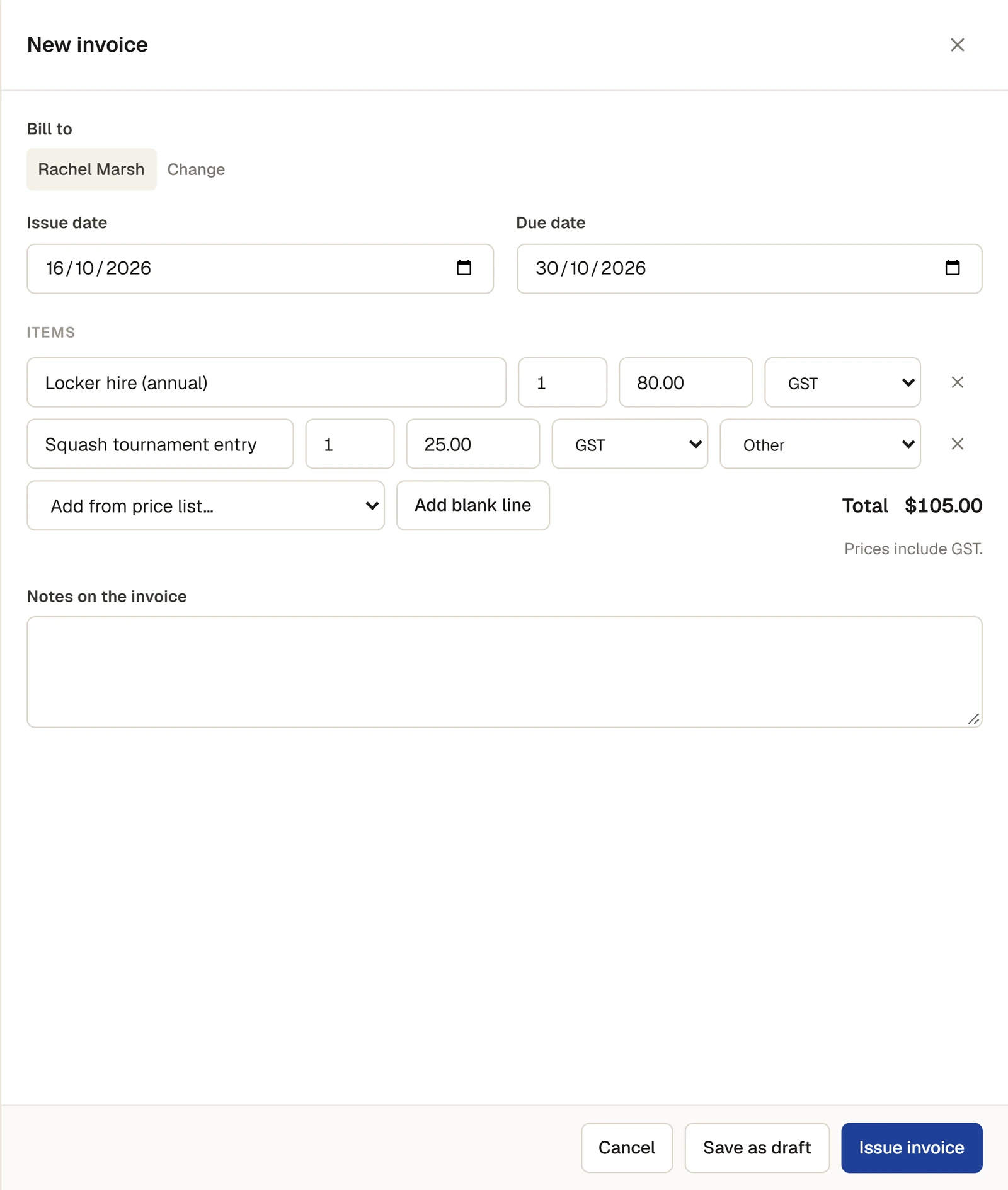
- Open and press New invoice. A panel opens headed New invoice.
- Under Bill to, type at least two letters of the person's name, their member number or their email, and choose them from the list. Each match shows the member number, whether they are a current member (or Not a member for a contact), and their suburb and email, so you can tell two people of the same name apart. Up to eight matches are listed: type more to narrow them. To choose someone else, press Change.
- Check Issue date (today) and Due date. The due date starts a set number of days after the issue date.
- Add the items:
- Add from price list… adds an item from the club's price list with its name and price. It takes its GST code and its category from the price list.
- Add blank line adds a line to fill in yourself: a description, the quantity and the price. Choose its GST code (GST, GST-free, Input-taxed or No GST) and what the income counts as (Membership, Court hire and guest fees, Other and so on). See Invoice line categories and GST codes.
- Change a line's quantity or price if you need to. Press × at the end of a line to take it off. Total below the lines adds them up.
- Type anything the invoice should say under Notes on the invoice. It is printed on the invoice.
- Press Issue invoice to raise it now, or Save as draft to finish it later.
A message says Invoice issued or Draft saved, and the panel shows the invoice with its number, each line's GST and the total.
A draft or an issued invoice
- A draft owes nothing and the member does not see it. Open it from the list, press Edit to change it, and Issue when it is ready.
- An issued invoice is owed from its issue date. The member sees it straight away on My invoices & receipts, with how to pay it.
What happens next
- Record the money when it arrives: Record a payment.
- To send the invoice, print it or save it as a PDF: Print an invoice or save it as a PDF.
If something goes wrong
- "Choose who the invoice is for." No one was chosen under Bill to.
- "Add at least one item." The invoice has no lines. A line with no description and no price is left off when it is saved.
- "Type at least two letters of a name, a member number or an email." Bill to searches once you have typed two letters or more.
- Nobody comes up under Bill to. The person is not on the member list, as a member or a contact, or is listed under another spelling or email. Try their member number. Someone who adds members can add them as a contact first.
- The name under Billed to is not a link. It links to the member's page only for someone who can see members.
Last checked in release 2026.10.23, on 23 October 2026.