
How to
Check and approve hours worked
See the hours staff have reported for a pay period, correct them, enter hours for someone, and approve them one at a time or all at once.
Who this is for: Anyone with “Approve hours worked” (by default: Administrator, Bar Manager).
After each shift, staff report the hours they worked on their My hours page. You check those hours on Hours, correct anything that is wrong, and approve them. Approved hours then go into the hours file for payroll when you close the period.
Before you start
- You need to be able to approve hours worked. The Bar Manager and the Administrator can by default. Your club can give it to other roles on Roles & permissions.
- Nobody approves their own hours, unless they are an Administrator. Your own hours wait for an Administrator.
The page
Open . It opens on the pay period you are in, for example Hours: Mon 19 Oct – Sun 25 Oct 2026, with the period in figures under it: entries, hours, how many are waiting for approval and how many shifts are not reported. Move between periods with the arrows, or press This period.
Each person has a block with their hours reported and how many are waiting. Each entry shows the day, the times and any break, what it was (As rostered, Rostered 5pm – 10pm when the times differ, or Not on the roster), the position, the hours and its state: Waiting for approval, Approved or Closed. Times that differ from the rostered times are shown in a different colour.
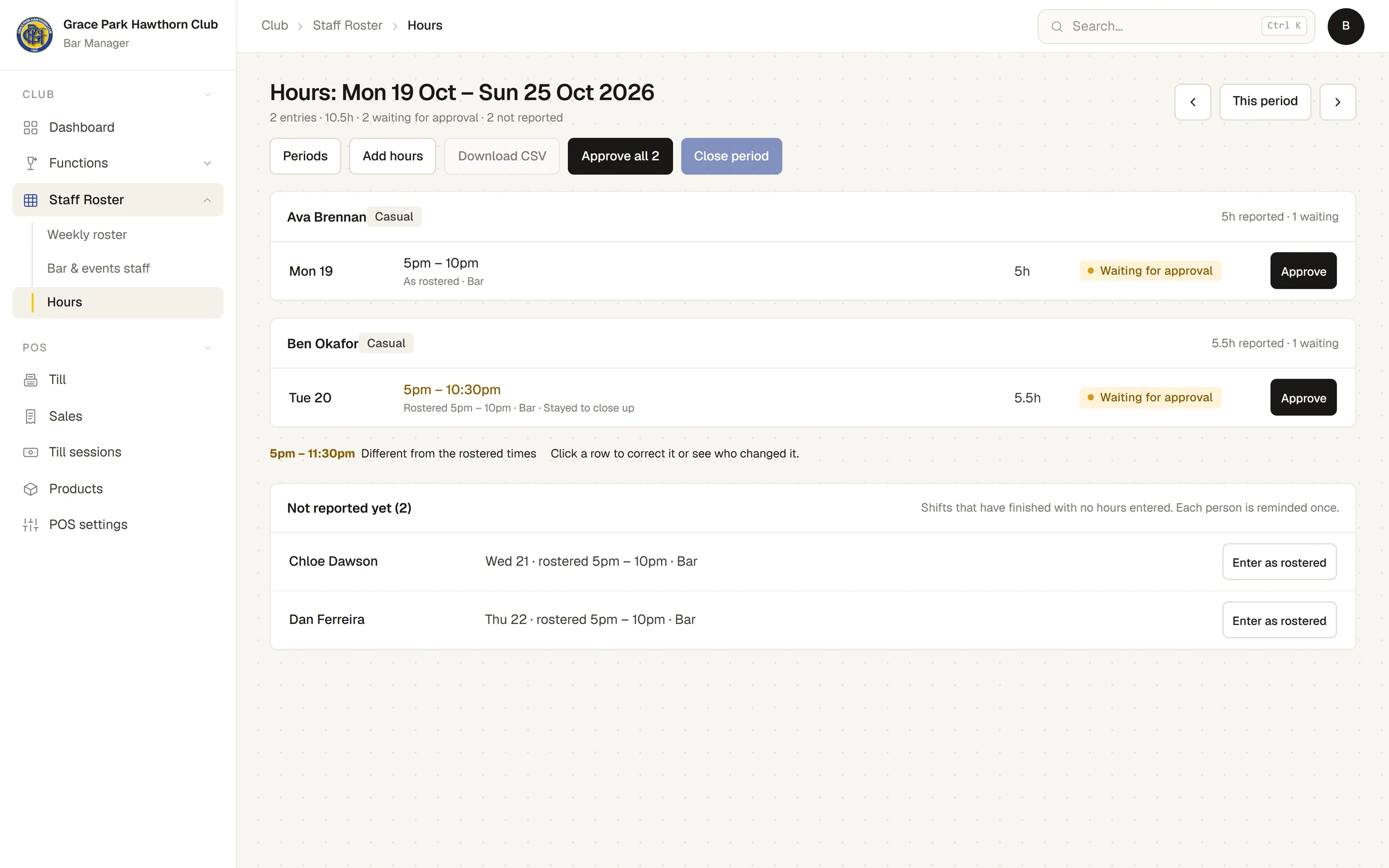
Below, Not reported yet lists the shifts that have finished with no hours entered. Each person is reminded once to report them.
Approve hours
- Press Approve on an entry. It changes to Approved.
- Or press Approve all 3 to approve everything waiting in the period. A message says, for example, 3 approved. Your own entries are left for an Administrator, and the message says so.
Reopen on an approved entry puts it back to Waiting for approval.
Correct an entry
- Press the entry's row. A panel opens with the person's name, the day and its state.
- Change the Start, Finish, Break (minutes) or Note. The panel shows the rostered times.
- Press Save.
Under History, the panel lists every change: who made it and when, for example Changed: finish 22:00 to 22:30, note. Staff see the same history on their own page, with your changes shown as made by the manager. Delete removes the entry; a rostered shift then shows under Not reported yet again.
Enter hours for someone
- For a rostered shift: under Not reported yet, press Enter as rostered. A message says Hours entered as rostered. Open it to correct the times if they differ.
- For work that was not on the roster: press Add hours. Choose the Staff member and the Date, set the Start, Finish and Break (minutes), choose a Position if there was one, type in Note what the work was, and press Add hours.
What happens next
When everything in the period is approved, close it: Close an hours period and download the hours. Sports Club OS records hours only. It has no pay rates and works out no pay.
If something goes wrong
- Approve is greyed for an entry. It is your own. An Administrator approves your hours.
- "These hours are already approved." Someone approved them a moment before. Reload the page.
- "Those hours have not finished yet. Report them once you have worked them." Hours can be entered only once they have finished.
- "Add a note saying what the work was, as it was not on the roster." Hours that were not on the roster need a note.
- "That period has been closed, so these hours can no longer be changed." The period is closed. Only the latest closed period can be reopened: see Close an hours period and download the hours.
Last checked in release 2026.10.23, on 23 October 2026.