
How it works
How roles and permissions decide what you see
What a role is, how a person can hold several, how members fit in, and how the club decides what each role may do.
Who this is for: Anyone who signs in to Sports Club OS.
What you can see and do in Sports Club OS comes from your roles. The club decides what each role allows, and Sports Club OS checks it every time you ask it for something, not only by hiding buttons.
Roles
A role is a job at the club, such as Bar Staff, Treasurer or Sports Convener. A person can hold any number of roles, and can do whatever any of them allows: a bar manager who is also on the committee can hold Bar Manager and Reporting.
Sports Club OS starts every club with these roles: Administrator, Head Coach, Casual Staff, Bar Manager, Bar Staff, Sports Convener, Functions, Coach, Website Editor, Reporting and Treasurer. What each one can do when a club starts is listed in Roles and their starting permissions.
Members
Being a member is not a role anyone gives you. A login is a member's when it is linked to that person's member record and the club has approved it. A member can then book, see their own invoices and keep their details up to date.
Most members never have a login. They are on the member list all the same.
Permissions
A role is made of permissions: one each for things such as seeing the member list, raising invoices, running the roster or using the till. Each permission has a plain name and a line on what it lets someone do. Every permission, in plain words lists them all.
Some permissions are about your own records only, such as booking your own courts or answering your own shifts. Those stay with the person they belong to and cannot be given to another role.
The club decides
The roles' starting permissions are only a beginning. An administrator can change what each role allows on the Roles & permissions page. A few things stay fixed, so nobody can lock the club out:
- The Administrator always has every permission, except those about a person's own records.
- Some permissions are kept for the Administrator alone, such as changing what roles may do and downloading all the club's data.
- Permissions about your own records stay with their own kind of person.
A change to what a role allows takes effect within a few seconds for everyone who holds it, and is recorded in the audit log. Giving someone a role, or taking one away, works differently: see below.
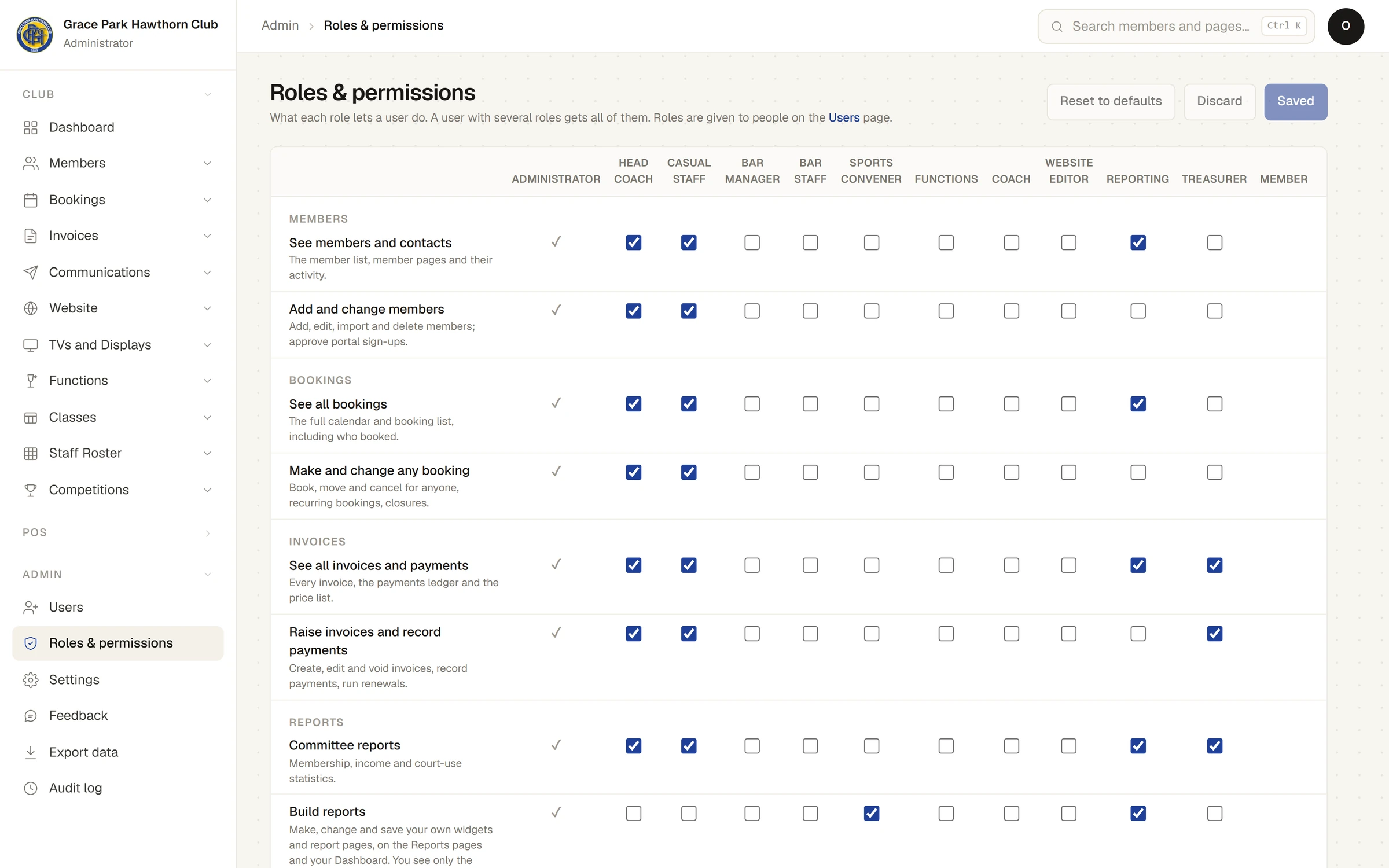
Why your menu looks different from someone else's
The menu shows only what your roles allow, so a member, a coach and the treasurer each see a different menu. If you need something you cannot see, ask the club's administrator to give you the role that allows it.
For anyone who can: “Users and roles”
Give someone a role
- Open .
- Press the person's row to open their page.
- Tick or untick their roles. What each role allows links to the Roles & permissions page.
- Press Save roles.
- Tell the person to sign out and sign in again. Their roles are read when they sign in, and renewed about once an hour, so until then their menu shows the roles they had. This is true of taking a role away too: they keep what it allowed until they sign in again or the hour is up.
To make a new login, press New user on the Users page, and choose its roles there. The person gets an email with a temporary password, and chooses their own when they first sign in.
Last checked in release 2026.10.23, on 23 October 2026.