
How to
Set up a TV and choose what it shows
Add each of the club's TVs to Displays, open its link once on the TV, then choose what it shows from Sports Club OS. Each card previews what it plays.
Who this is for: Anyone with “Make and change displays” (by default: Administrator, Head Coach, Casual Staff, Sports Convener, Functions).
Displays lists the club's TVs, one card for each. You add a screen once, open its link once on the TV, and leave the TV on that page. After that, you choose what the TV shows from Sports Club OS, on a computer or a phone, and the TV changes by itself within a few seconds. Nobody needs to touch the TV again.
Before you start
- You need to be able to make and change displays. The Administrator, Head Coach, Casual Staff, Functions and Sports Convener roles can by default. Your club can change this on Roles & permissions.
- Each TV needs a web browser that can be left open on one page.
- A TV can show anything on : the club's displays (slide shows), each sport's court board, Classes today and Today at the club. To show a slide show, make it there first.
Add a screen
- Open .
- Press Add a screen. A new card appears at the end of the list, named Screen and the next number, and showing Today at the club (the day's functions). A message says Screen added. Give it a name, choose what it shows, then open its link once on the TV.
- Under Screen, type the name people know the TV by, for example "Bar TV".
- Under Where it is, type where it hangs, for example "Members' bar". Each box is saved when you leave it.
- Choose what it shows, as below.
Put the link on the TV
- Press Copy link on the screen's card. A message says Link copied. Open it once on the TV.
- On the TV, open its web browser, go to that link, and leave the TV on that page.
The link needs no sign-in, so the TV stays on it without anyone signing in. Open this screen opens the same page in a new tab on the computer you are using, so you can see it full size.
Choose what a TV shows
- On the screen's card, choose from Showing. The list is in groups: Displays (the club's slide shows) and Boards (each sport's court board, Classes today and Today at the club (the day's functions)). If you also run competitions, it has Competitions too.
- A message says, for example, Foyer now shows: Foyer welcome. The TV changes on its next look. The card's Now showing line changes at once, and the TV follows within a few seconds.
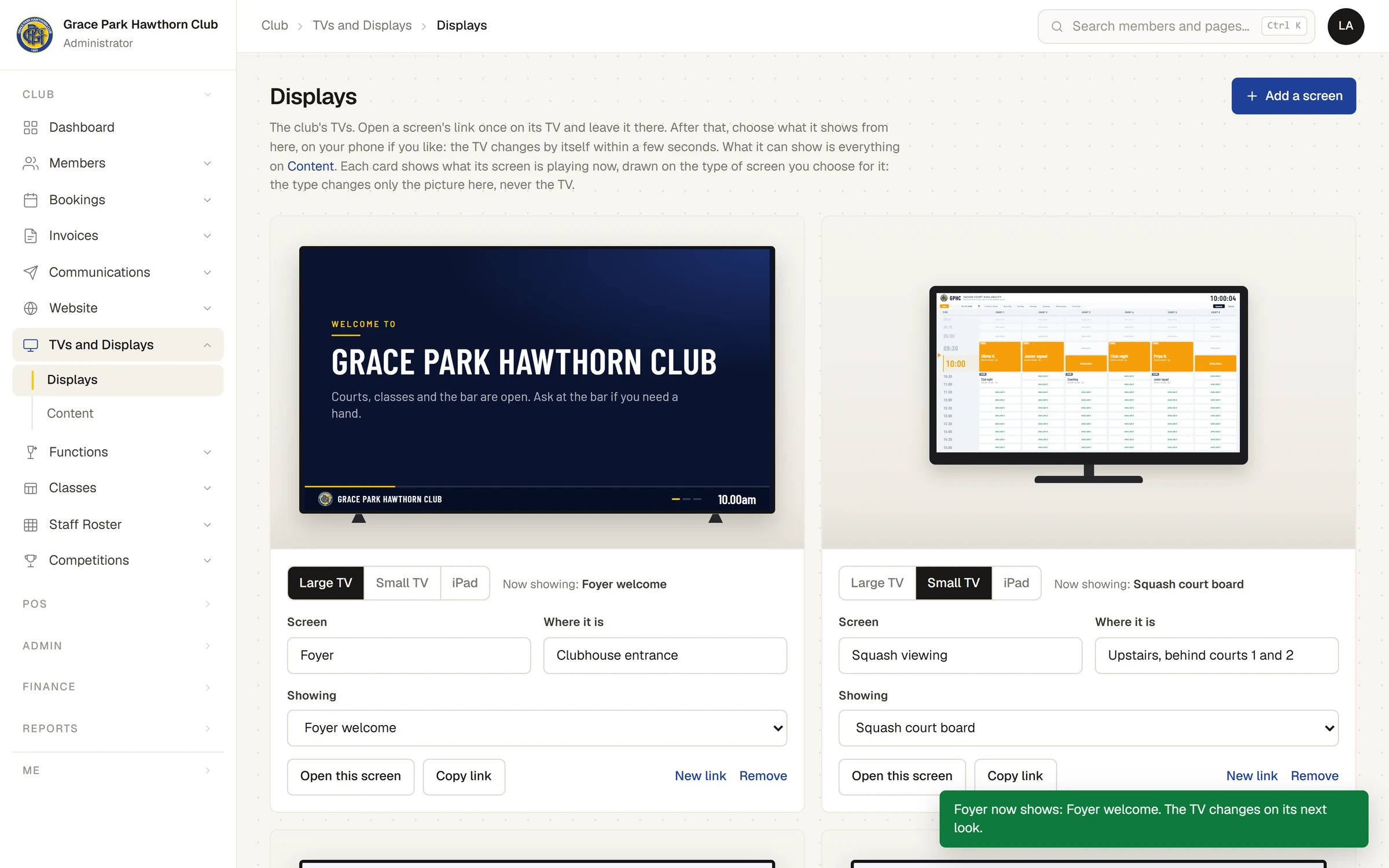
The picture at the top of each card is what that screen is playing now, kept moving as it is on the TV: a display's slides turn, and a court board keeps up with the day's bookings. A preview runs only while its card is on your screen.
If what a screen was given has gone, for example a display that was deleted, the card says Nothing to show: what this screen was given has gone, so the TV says it has nothing to show. Choose what it shows below. Choose something else from Showing.
Choose the type of screen
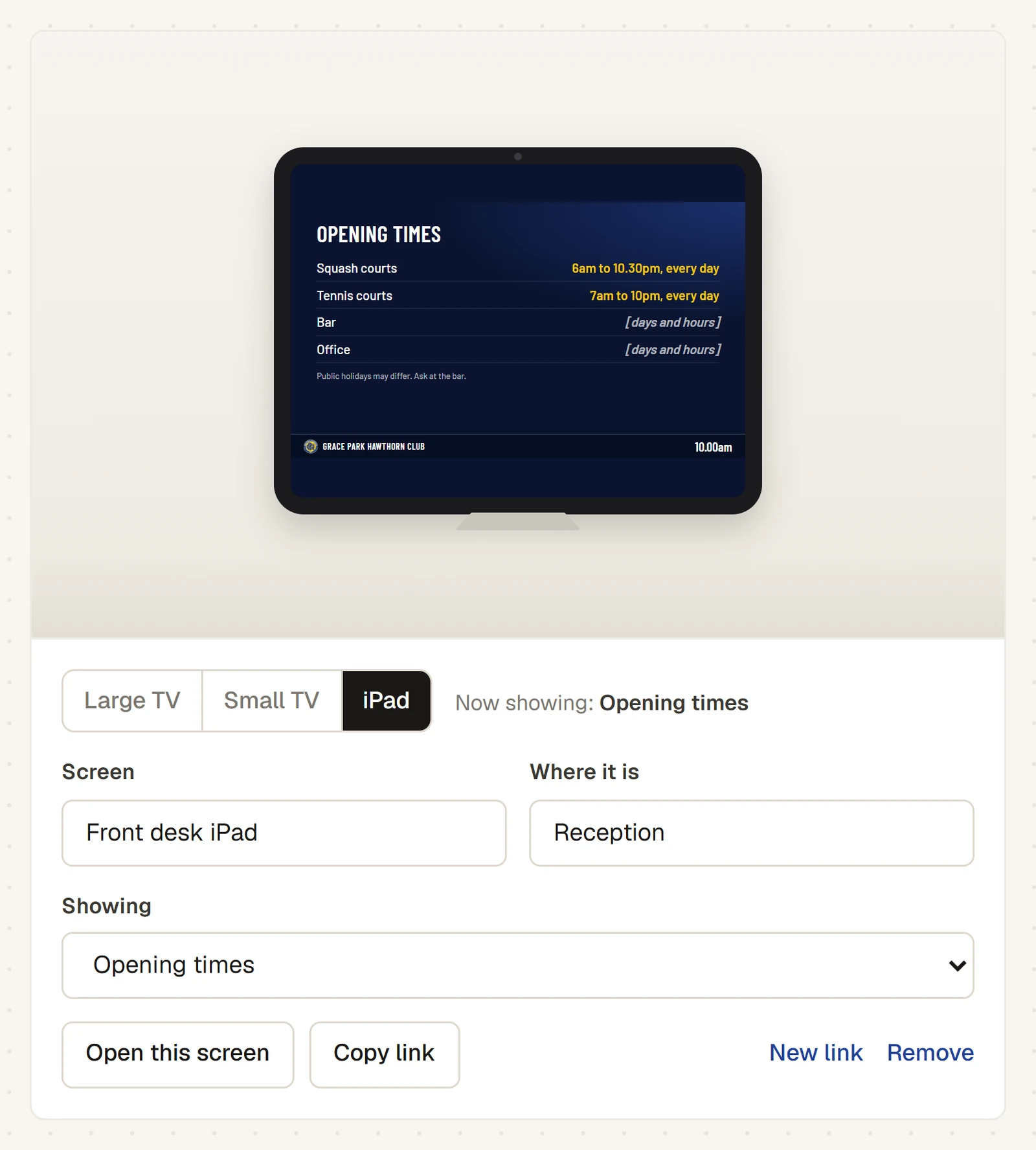
Under each preview, choose Large TV, Small TV or iPad. The card then draws the preview on that type of screen: a TV wide, and an iPad on its side, with what plays fitted to it as it would be on the iPad. Large TV and Small TV differ only in how big the picture is drawn.
The type of screen changes only the picture on the card, never what the TV or iPad shows. It is saved with the screen, so everyone who opens Displays sees the same.
Give a screen a new link
- Press New link on the screen's card. It changes to Press again: the old link stops working.
- Press it again straight away. A message says New link made. The old one no longer works.
- Put the new link on the TV, as above. Until you do, the TV says This screen's link no longer works. The link for each TV is on TVs and Displays in Sports Club OS.
Remove a screen
Press Remove on the screen's card, then Press again. A message says, for example, Bar TV removed. Its link no longer works. The TV then says its link no longer works.
Competition boards
Putting a competition board, or a court's live score, on a screen is for someone who also runs competitions. The Sports Convener can by default. There is one list of the club's TVs: the same screens are on the TV screens tab of Competitions, so a screen added or a board chosen on one shows on the other. A convener can also put a board on a TV from a board's preview with Put on a TV. See Wallboards and putting a board on a TV.
For everyone else, a screen showing a competition board is set from Competitions. Its card says A competition board: set from Competitions by whoever runs them. You can still rename it, say where it is and choose its type of screen. You cannot change what it shows, its colours or its link, or remove it.
Colours (Light or Dark) appear only on a screen showing a competition board, and set that board's colours on the TV.
If something goes wrong
- The card says "The preview could not be loaded just now. The TV itself is not affected." The preview failed in your browser. The TV carries on as it was.
- The card says "This browser would not show the preview here." Press Open it in a new tab to see it there instead.
- The TV says "This screen has nothing to show just now." What it was given has gone. Choose something else from Showing on its card.
- The TV says "This screen's link no longer works." The screen was given a new link, or removed. Copy the link from its card again and open it on the TV.
- The TV says "This screen has not been set up, or its link has been replaced. The link for each TV is on the TV screens page in Competitions." The screen was removed or given a new link. The page it names has moved: the link for each TV is now on . The TV screens tab of Competitions shows the same list. Copy the link from the screen's card and open it on the TV.
Last checked in release 2026.10.23, on 23 October 2026.