
How to
Sort the Inbox with folders, tags and right-click
Move conversations between folders, make your own folders, tag conversations, filter by member or tag, and act on several conversations at once.
Who this is for: Anyone with “Use the member inbox” or “Send text messages” (by default: Administrator, Casual Staff, Treasurer).
Folders say where a conversation is up to. Tags say what it is about. They are separate: moving a conversation to another folder leaves its tags alone, and tagging it does not move it.
Folders
Every inbox has four folders, with a count of what you have not read beside each.
| Folder | What is in it |
|---|---|
| Inbox | Conversations still being dealt with. |
| Done | Conversations someone has marked done. |
| Sent | Every message sent from the inbox, one row each, newest first. Press one to open its conversation at that message. |
| Spam | Mail that looks like spam, kept away from everyone's lists. |
A text sent from Communications is also in Sent, in the Text/SMS inbox, as one row for the whole send; it opens that send's results. Emails sent to a whole group from Communications are not here: they are under .
If you are on several inboxes, All shows the four folders for all of them together. A folder of your own belongs to one inbox, so it is not offered under All.
Make your own folder
- Press + New folder under the inbox's folders.
- Type a name and press Add.
Anyone on the inbox can make, rename or remove its folders, and everyone on the inbox sees them. To rename or remove one, right-click it and choose Rename… or Remove…. Removing a folder asks first, and what it held goes back to Inbox.
A conversation is in one folder at a time.
Move a conversation
- Drag a row on to a folder. The folder lights up while you are over it. You can drag to Inbox, Done, Spam or one of that inbox's own folders, never to Sent, and never to another inbox.
- Or choose Actions, then Move to…, and pick a folder. This works from the keyboard and on a phone too.
If someone writes again to a conversation in a folder, it goes back to Inbox, so a shared inbox never misses a reply.
The Actions menu
Everything you can do to the conversation you are reading is under Actions, at the top of the reading pane. Right-clicking a row in the list opens the same choices (on a phone, press and hold).
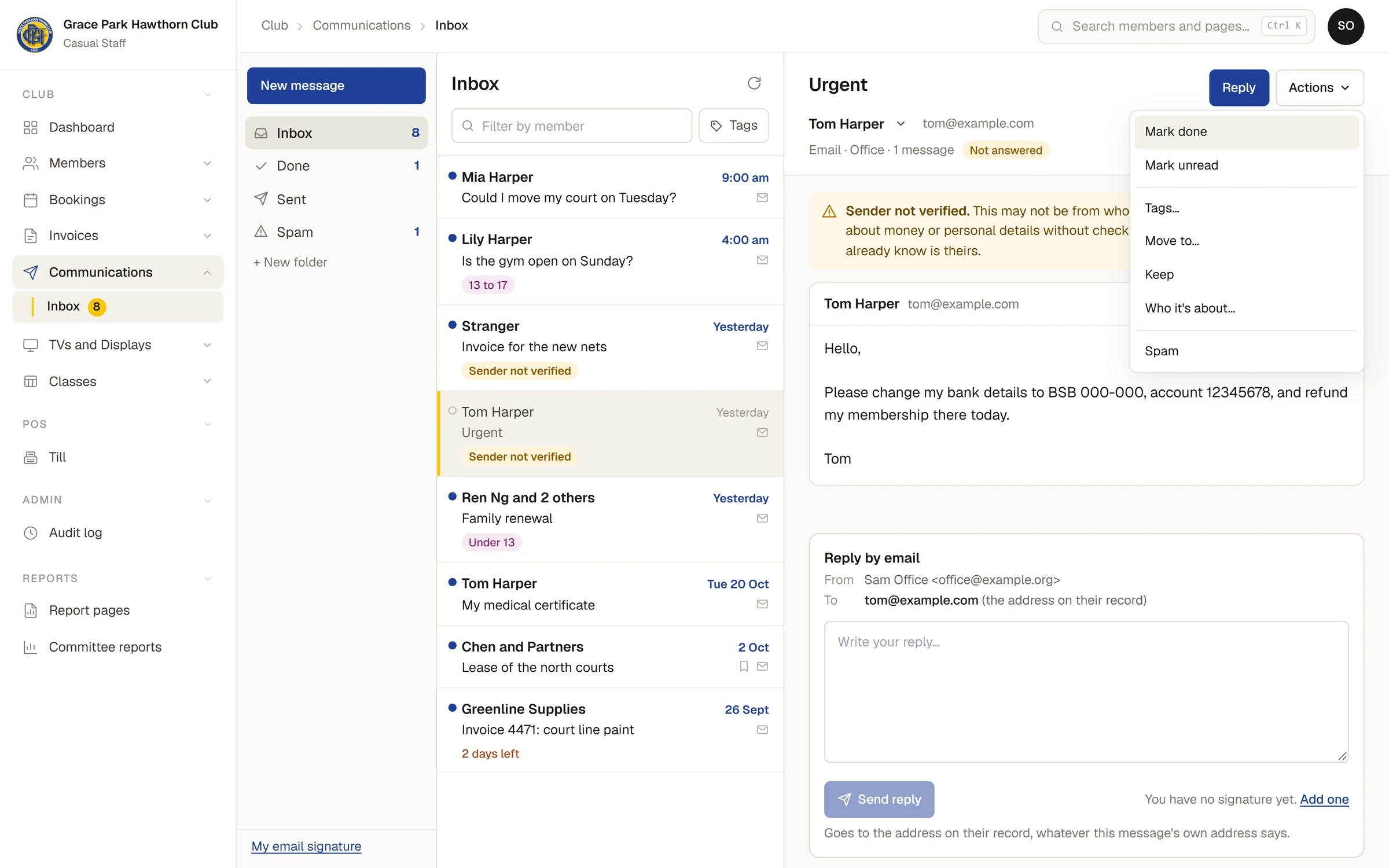
| Choice | What it does |
|---|---|
| Mark done | Moves it to Done. In Done the choice is Back to Inbox. |
| Mark unread or Mark as read | Changes the dot for you only. |
| Tags… | Opens the tags to tick, and a place to make a new one. |
| Move to… | Moves it to a folder of the same inbox. |
| Keep or Stop keeping | Stops the conversation being deleted by date. See How long mail is kept. |
| Who it's about… | Shows who the conversation is linked to. See Who a conversation is about. |
| Spam or Not spam | Moves it to or from Spam. |
When you file a conversation you are reading (mark it done, move it, send it to Spam), the reading pane empties. A message at the bottom says what happened, for example Marked done or Moved to Done, with Undo. Press Undo within seven seconds to put it back.
Tags
Tags are the club's own, for any conversation in any inbox.
- Choose Actions, then Tags….
- Tick the tags to put on, or untick to take one off.
- To make a new tag, type its name under New tag, choose one of the colours and press Add tag.
Anyone using an inbox may make a tag. Changing a tag's name or colour, or removing it, needs permission to set up inboxes, which the Administrator has by default; use Change or remove tags in the same window. A change applies to every conversation with that tag, and removing a tag takes it off every conversation.
A row shows up to two tags, then a count such as +1.
Filter the list
- Filter by member: type a name and choose the person. The list then shows that member's emails and texts together, in whichever folder you have open. Press the cross to show everyone again.
- Tags: press Tags, then tick one or more tags. The list shows conversations with any of them. Each tag chosen appears under the filter with a cross, and Show every tag again clears them.
If nothing matches, the list says so and reminds you that tags and folders are separate, so it may be in another folder.
Act on several conversations at once
- Ctrl and press a row adds that row to your selection.
- Shift and press a row selects the run from the last row you pressed.
- Ctrl and Shift together add that run to what you already have selected.
- Ctrl+A selects everything listed. Escape, or the cross at the left of the bar, lets go.
On a phone, press and hold a row and choose Select, then press the other rows.
While rows are selected, a bar above the list says how many are selected and offers Mark done (or Back to Inbox) and Actions, which holds the same choices as for one conversation. Right-clicking a selected row and dragging them to a folder act on all of them. A folder is offered only when everything selected is in that inbox.
If some cannot be changed, the message says how many were changed and why the others were not, and the rest still stand.
What moves and what does not
- Rows that leave the list fold away, and rows that arrive fade in. Nothing moves if your computer is set to reduce motion.
- The widths of the folder column and the list can be dragged. Double-click the grip to put one back.
Last checked in release 2026.10.31, on 31 October 2026.