
How to
Write and send a text to members
Write a short text in six steps (kind, who, message, check, test and send), see how many SMS it is and what it will cost, then send it with a 30-second hold.
Who this is for: Anyone with “Send text messages” or “See members and contacts” (by default: Administrator, Head Coach, Casual Staff, Reporting).
A text goes through the same six steps as an email: Kind, Who, Message, Check, Test and Send. It is saved as you go. Each step shows how many SMS the text is and what it will cost the club, and nothing leaves for 30 seconds after you confirm the send.
Use a text for short, timely notices, such as a closure or a change of plan. Newsletters and anything long stay on email.
Before you start
- You need to be able to send text messages. The Administrator can by default. Your club can give this to other roles on Roles & permissions. Someone who can send emails but not texts does not see texts at all, and the reverse.
- Texts must be switched on and set up for the club. An Administrator does this once: see Set up texts to members. If they are off, the page says Text messages are switched off, so this cannot be sent yet.
- To see the names behind the numbers, and to add or leave out people by hand, you also need to be able to see members.
Start a text
Open and press New text. A new draft opens at step 1, Kind. Or open , which starts a message, and choose Text message under Email or text?. You can change between the two until you start writing.
The note at the foot of the page says Saving…, Draft saved or Not saved yet. The draft is listed under Drafts on Communications, marked Text, until it is sent.
1. Kind
Choose what kind of text this is. Each card says who it will reach.
- Essential notices says All who have not said no. It goes to every adult you choose who has not refused texts, with no opt-out line. Use it only for facts people need: safety, closures, formal notices.
- Club news, Events and social and Competitions and coaching (your club may have named them differently) say Only to those who said yes. A text of one of these kinds reaches only people who said yes to that kind of text, and ends with Reply STOP to opt out.
The reason: people may refuse texts about newsletters and events, but a closure notice is one they would want. How members say yes is in How members choose which texts they get.
Press Next: Who.
2. Who
Choose who gets it, as for an email: everyone, or members by status, type and tag, or one of your saved Members filters. See Who a message goes to, and who is left out. The panel on the right, Who gets it, shows:
- how many mobile numbers it goes to and how many people those reach, for example 300 mobile numbers, reaching 301 people;
- About A$9.00 for this text as it stands, which changes as you write;
- Left out, with a count and a reason for each, and Who beside each reason to list the names if you can see members.
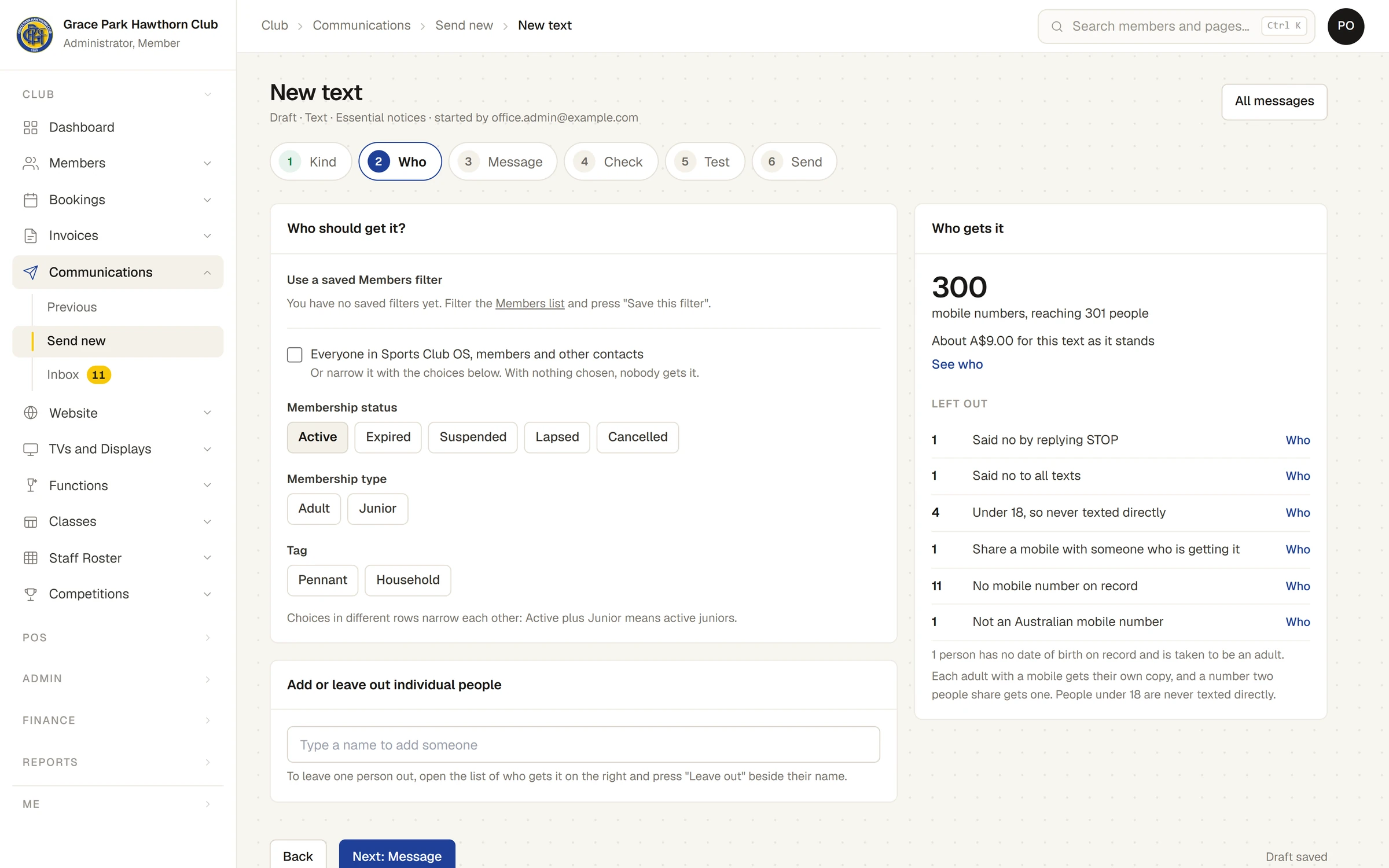
Each adult with a mobile gets their own copy, and a number two people share gets one. People under 18 are never texted directly.
| Left out because | What it means |
|---|---|
| Said no by replying STOP | The number replied STOP, so no text goes to it, Essential included. See STOP and START. |
| Said no to all texts | The person chose No to all texts, so no text goes to them, Essential included. |
| Said no to this kind of text | They said no to this kind. |
| Have not said yes to this kind of text | For a kind other than Essential, they have never said yes. |
| Under 18, so never texted directly | Anyone under 18 on the day. A date of birth decides this, or else a junior membership type. |
| Share a mobile with someone who is getting it | Their copy goes to the same number, once. |
| No mobile number on record | Their record has no mobile. |
| Not an Australian mobile number | A landline or an overseas number. |
A person with no date of birth on record, and a type that is not a junior one, is taken to be an adult. The panel says how many, for example 1 person has no date of birth on record and is taken to be an adult.
Press Next: Message.
3. Message
Type the text in the box under Your text. The club's name at the start, for example GPHC:, is added for you. For any kind but Essential, Reply STOP to opt out is added at the end. Both count in the length.
Under the box:
- a bar of six segments, one for each SMS, filling as you type;
- the count, for example 2 SMS, and how many characters are left in this SMS;
- the cost, for example About A$18.00 to 300 numbers.
A phone beside the box shows the text as it will arrive.
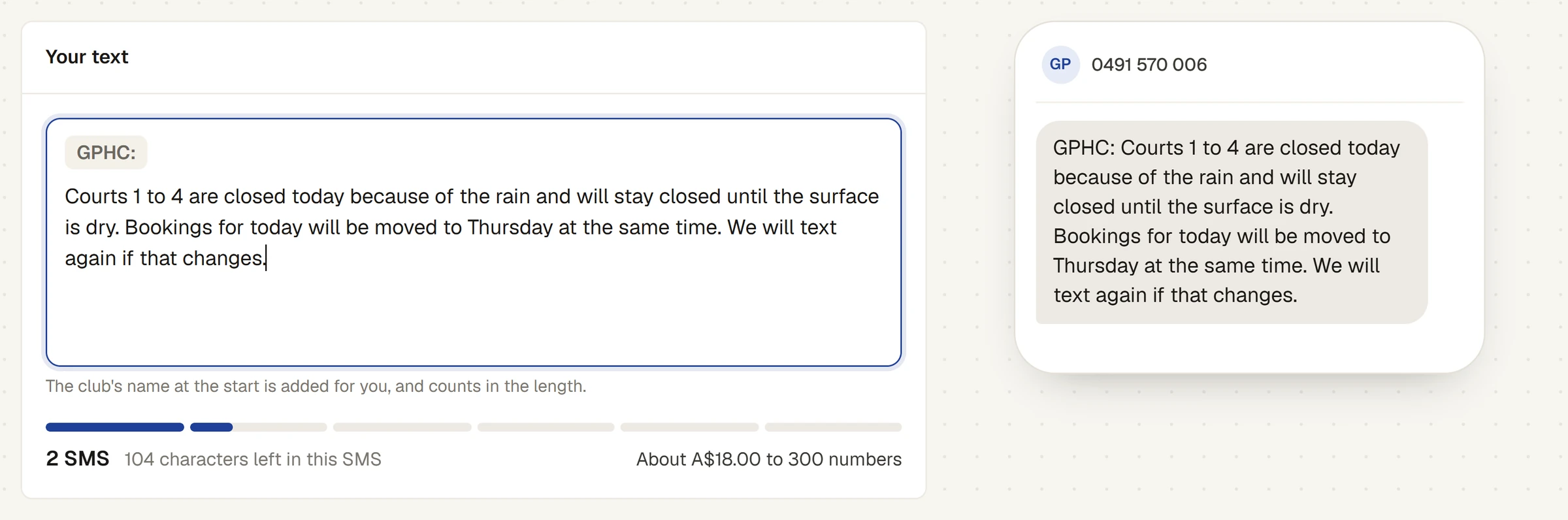
An SMS holds 160 characters. A longer text is sent as several, each holding a little less (153), and each is charged. A text may be no longer than six SMS. A character such as an emoji or a curly quote from a phone's keyboard makes each SMS much shorter (70 characters). The box says so and offers Swap for plain quotes and dashes.
Texts are the same for everyone. They have no merge fields: words in curly brackets cannot be filled in, and the Check step asks you to take them out.
Press Next: Check.
4. Check
As it will arrive shows the text on a phone, with its length, for example 1 SMS · 98 characters.
Before you send lists anything to look at.
- Red items stop the text being sent until they are fixed: The text is empty., This text is 7 SMS long, and the most is 6. Shorten it., Nobody would receive this. Choose who it goes to., and words in curly brackets.
- Amber items are worth a look: a person taken to be an adult, people who never said yes and are left out, a detail still in square brackets, characters that shorten each SMS, and no test sent, or the text changed since the last test.
Is this really Essential?
An Essential text goes to people who have not said yes to texts, so it must only state facts. If the words look like selling, a box says why and highlights them in the text. It looks for a price, tickets, Book now and similar asks, a link, and words that sell, such as buy, raffle or sign up.
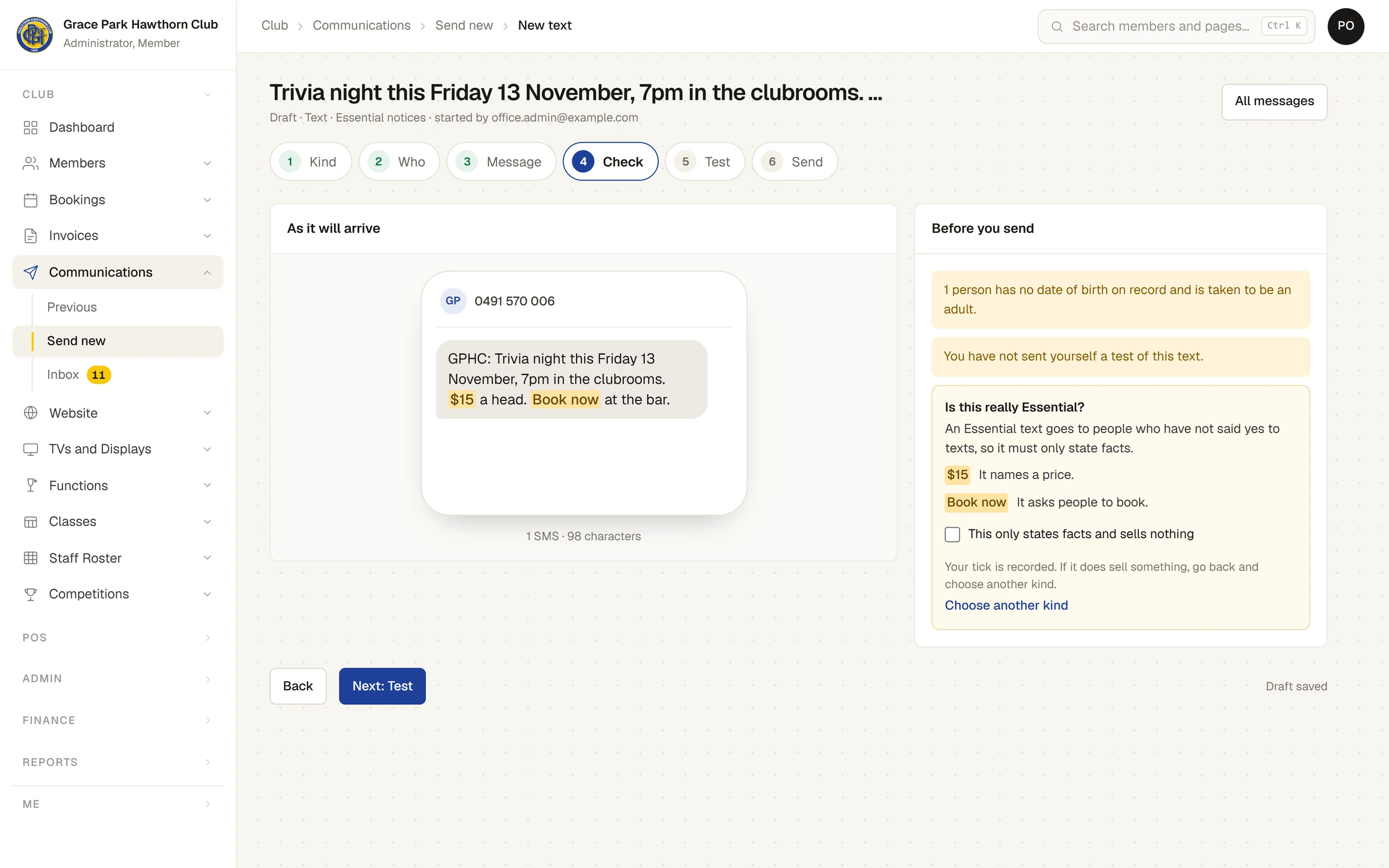
To send it as Essential, tick This only states facts and sells nothing. Your tick is recorded with the text. If it does sell something, press Choose another kind and send it as a kind members have said yes to. The text cannot be sent while the box is unticked.
5. Test
Press Send me a test. A copy goes to your own mobile, the one on your member record, with [Test] at the start, and costs about A$0.03. If your record has no mobile, the page asks you to type your own Australian mobile to send the test to. The page then says when it was sent, and the button becomes Send another test.
A test is not compulsory, but it is the best way to see the text on the phone it will arrive on.
6. Send
The Send step sums up the text:
- how many texts it is and about what they will cost;
- the kind, who it goes to, how many SMS each is and the price of one SMS;
- This month: how much is left of the club's monthly limit;
- whether you sent a test.
- Read the summary.
- Press Send 300 texts…. The number is how many numbers it goes to. It is greyed out while a red item is open, and for an Essential text that looks like selling until the box is ticked.
- The page asks Send 300 texts for about A$9.00? Press Yes, send 300 texts, or Not yet to go back.
Who it goes to, and each person's choice, is worked out again at that moment and again for each number as it is sent, so someone who sends STOP in the meantime is not texted.
The monthly limit
If the cost would take the month past the club's limit, nothing is sent. The step says This is over the month's limit, so it has not been sent., what it would cost and what is left, and gives a box to raise the limit with how much is needed. Only the Administrator can raise it. The limit applies to Essential texts too, so a closure notice can be blocked by it. See Set up texts to members.
What happens next
- The page shows Sending starts in 30 seconds, counting down, with Stop: do not send. Nothing has left yet: stop now and nobody receives it. After the hold, the button reads Stop sending the rest. Texts already sent cannot be called back. See Stop a message during its hold, which works the same way for a text.
- After the hold, the page shows what happened to each number as the reports arrive. See What happened to a text.
- A sent text cannot be changed. Copy this message makes a new draft from it.
- The text is kept once in the Sent folder of the Text/SMS inbox, as one line for the whole send, such as To 300 numbers, and against each member it went to, on their page. If a member replies, the reply follows it in the Inbox, and no automatic answer is sent. See Read and answer members' emails and texts in the Inbox and A member's messages.
If something goes wrong
- Text messages are switched off, so this cannot be sent yet. Texts are off for the club. The Administrator switches them on in Settings.
- The club has no number to send texts from yet. The number has not been entered in Settings.
- Nobody would receive this. Choose who it goes to. Go back to Who.
- The page asks you to type your own Australian mobile for the test. Your member record has no mobile number.
If a person says they did not get a text, see Why didn't a member get my text?.
Last checked in release 2026.10.31, on 31 October 2026.