
Setting up
Set up an inbox and who can read it
Make an inbox, name the people who read it, forward the club's mailbox to it, check it works and, as a separate job, set it up to reply from the club's address.
Who this is for: Anyone with “Set up inboxes” (by default: Administrator).
An inbox is a shared place in Sports Club OS for what arrives at one of the club's mailboxes, such as the office or the treasurer. Each inbox gets its own address. You set the club's mailbox to forward a copy of its mail to that address, and the people you name on the inbox read and answer it in Sports Club OS.
Setting up has two jobs. The first, making the inbox and forwarding to it, lets people read. The second, verifying the club's domain, lets them reply from the club's own address. Until the second is done, an inbox only reads.
Decide first
- Which mailboxes. Make one inbox for each mailbox people already write to, such as the office and the treasurer. Mail sent to the club's mailbox before the forward is on does not come through.
- Who reads each one. Only the people you name can read an inbox. That includes Administrators. Read Who can read an inbox before you name them.
- Who can change the forward. The forward is set in the club's mailbox, in Gmail or Microsoft 365, by whoever looks after it. You may need that person, and for Microsoft 365 you will probably need an administrator of the club's account.
Before you start
You need to be able to set up inboxes. The Administrator can by default. Email must also be connected for the club. If it is not, the page says Email isn't connected on this system and It is switched on once for each club, when the club's receiving address is set up. Until then no inbox can be made, and only the replies to the club's texts, in their own inbox Text/SMS, come in.
Make the inbox
- Open and choose the Inboxes tab.
- Press New inbox.
- Under Name, type a name, for example Office.
- Under The club's email address for this inbox, type the mailbox people already write to. Tests go there, and replies come from it.
- Under Who reads it, tick each person who should read this inbox. Tick yourself if you need to.
- Press Make the inbox. The message Inbox made. Now set up the forward. shows, and the panel stays open with the next steps.
A person marked Also needs Use the member inbox, on Roles and permissions, before they can open it is on the list but cannot open the Inbox yet. Give that to their role on Roles & permissions.
Forward the club's mailbox
The panel's step 3 shows an address that looks like a long string of letters at the end of the club's own receiving domain. Press Copy. Keep it to yourself: anything sent to it lands in this inbox.
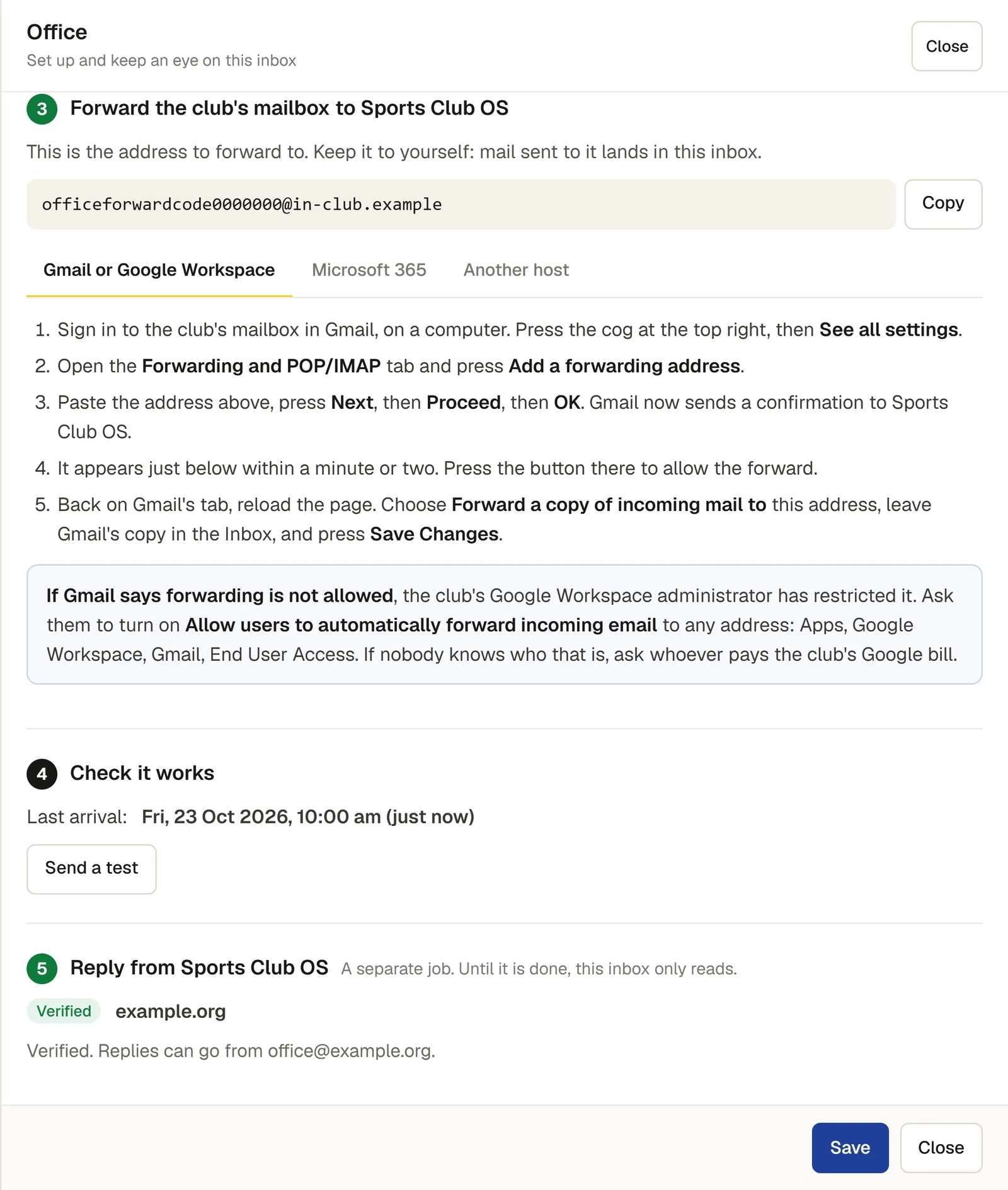
Choose the tab for where the club's mail is hosted. The steps are in the panel.
Gmail or Google Workspace
- Sign in to the club's mailbox in Gmail, on a computer. Press the cog at the top right, then See all settings.
- Open the Forwarding and POP/IMAP tab and press Add a forwarding address.
- Paste the address, press Next, then Proceed, then OK. Gmail sends a confirmation.
- The confirmation appears in the panel within a minute or two, as Gmail's confirmation has arrived. Press Allow the forward, on Google's page while signed in to the club's mailbox. Sports Club OS does not press it for you: the mailbox's owner has to agree.
- Back in Gmail, reload. Choose Forward a copy of incoming mail to this address, leave Gmail's copy in the Inbox, and press Save Changes.
If Gmail says forwarding is not allowed, the club's Google Workspace administrator has restricted it. They need to turn on Allow users to automatically forward incoming email to any address.
Microsoft 365
New Microsoft 365 accounts block forwarding to an outside address. Without an administrator's change the mail bounces with the error 5.7.520, and nothing reaches the inbox. The panel gives words to send to whoever set up the club's Microsoft 365. Once that is done, whoever looks after the mailbox:
- Signs in to the club's mailbox and presses the cog.
- Chooses Mail, then Forwarding.
- Turns on Enable forwarding and pastes the address.
- Ticks Keep a copy of forwarded messages and presses Save.
Another host
Most hosts have this under Forwarders or Email forwarding. Set the club's address to forward to the address, and make sure a copy stays in the mailbox. If you cannot find it, the panel gives words to send to the host's support.
Check it works
- In step 4, Check it works, press Send a test. A test goes to the club's address and should come back through the forward.
- The panel says it is waiting and looks every few seconds. When it arrives it says It works, and Last arrival shows the time.
If Last arrival says Never, nothing has come through yet. Usually the forward is not on, its confirmation has not been pressed, or on Microsoft 365 an administrator has not allowed it. A quiet mailbox can also look the same.
Anything with a virus is refused and not kept; the panel counts how many.
Reply from the club's address
This is a separate job, and an inbox reads without it. Replies go from the club's own address with the person's name on them. For that, the club's domain must say that Sports Club OS may send for it, once. Whoever looks after the club's domain does this, usually whoever set up its website or email.
- In step 5, press Start. The panel shows the records to add to the club's domain, each with a Type, Name and Value, with Copy beside each.
- Add them to the club's domain exactly as shown. They can take from a few minutes to three days to be seen.
- Press Check again. When the records are seen, the mark changes from Waiting to Verified, and the panel says Replies can go from the club's address.
Until it is verified, someone opening a conversation sees This inbox can read mail but not reply yet, and, if they can set up inboxes, a link back to this page.
If people also reply from the mailbox itself
Sports Club OS does not see a reply sent from Gmail or Outlook. Step 6 gives a second address. Add it as a Bcc on such a reply, and the reply appears in the conversation and marks it done. It is optional.
How long mail is kept
Step 7 sets how long a former member's mail is kept after they leave, from 1 to 7 years. See How long mail is kept.
Change who reads it, or remove it
Open the inbox from the list and change the ticks under Who reads it, then press Save. Removing an inbox is at the foot of its panel, under Remove this inbox. It stops taking mail and nobody can open its list again. What it holds stays on members' pages and is deleted on the usual dates. Take the forward off the club's mailbox as well.
Check it worked
- Last arrival shows a time and the test says It works.
- A person you named opens and sees the inbox's mail.
- For replying, the inbox shows Verified and a person can press Send reply.
Last checked in release 2026.10.31, on 31 October 2026.