
How to
A member's messages: the Messages tab and Message history
See every email and text with one member in a table on their page, send them an email or text, and export it for an access request.
Who this is for: Anyone with “Read a member's messages” or “See members and contacts” (by default: Administrator, Head Coach, Casual Staff, Reporting).
A member's page can show every email and text between them and the club in one place, whichever inbox it came through. This is for the people who answer questions such as "what have you got on me?", and who need the whole history.
Who sees it
Only someone who can read a member's messages sees the Messages tab and the Message history on the Overview tab. The Administrator can by default. Your club can give it to other roles on Roles & permissions.
Everyone else who can open the member's page, even with permission to see members, sees no sign of it: no tab, no section and no count.
This is separate from the Inbox. Reading a member's messages here does not need you to be named on the inbox they came through.
Message history
On the Overview tab, Message history lists the latest few conversations, each with its date, whether it was an Email or a Text, and its subject. A text has no subject, so its first words stand in. Press one to open it, or See all messages to go to the Messages tab. If there is nothing, it says No messages yet.
The Messages tab
Press Messages on the member's page. It lists every conversation linked to the member, one row each.
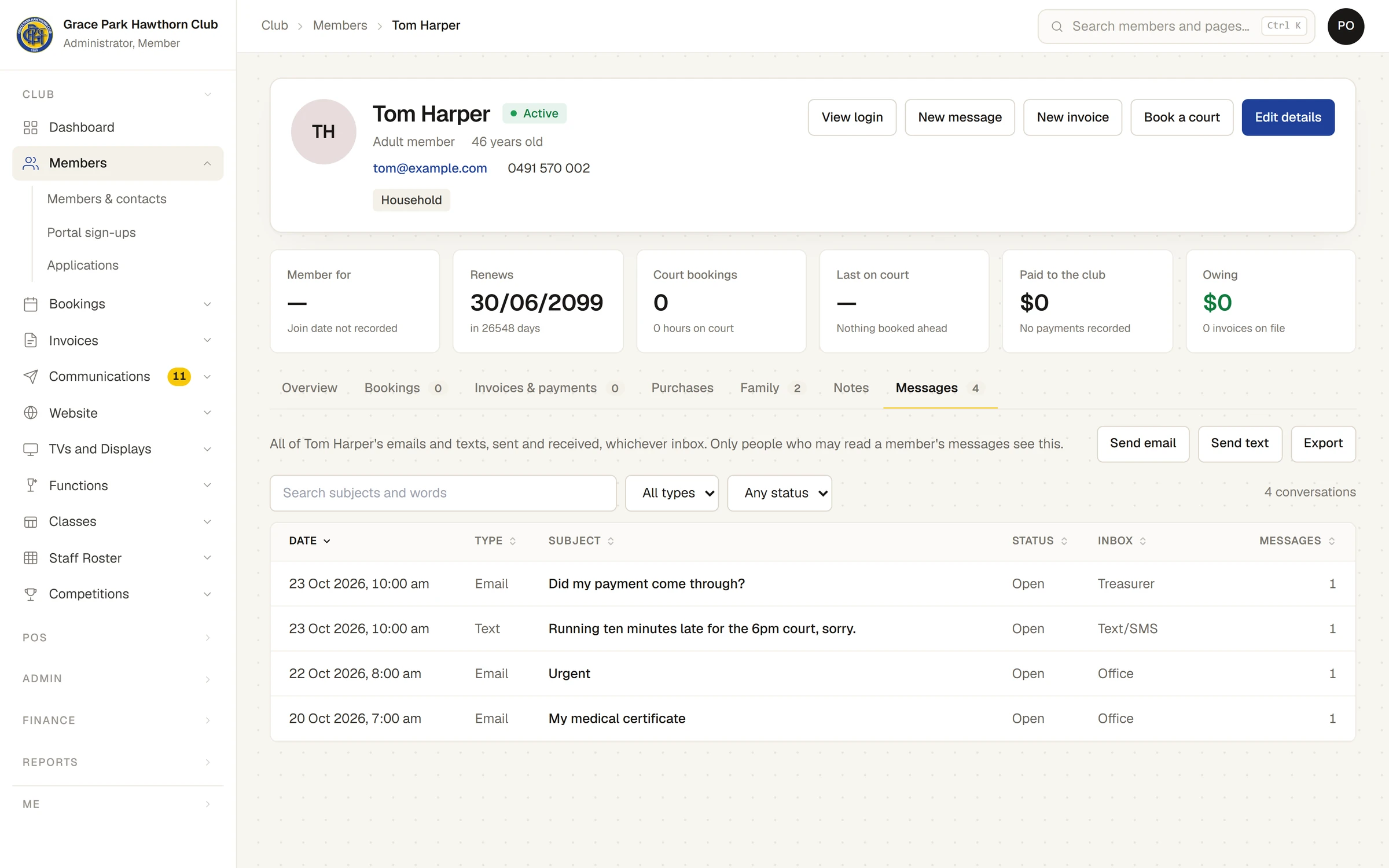
The table has these columns, and each heading sorts:
| Column | What it shows |
|---|---|
| Date | When the conversation last had a message. |
| Type | Email or Text. |
| Subject | The subject, or the first words of a text. |
| Status | Inbox, Done or Sent. |
| Inbox | Which inbox it is in, including Text/SMS. |
| Messages | How many messages it holds. |
Above the table, type in Search subjects and words to narrow the list, choose a type (All types, Email or Text) and a status (Any status, Inbox, Done or Sent), and choose the order. Clear puts it all back. The count at the right says how many conversations are showing.
Press a row. The conversation opens in a panel beside the table, with every message. If you are also named on that inbox, Open in the Inbox takes you there. Pictures from other sites are not loaded in this panel.
A sender that could not be proved carries the same warning here as in the Inbox. See Why does it say Sender not verified?
Send an email or text to the member
If you can use the Inbox, or can send texts, the tab also has Send email and Send text. They open New message with the member already chosen. What you send is recorded here and appears in Sent in the inbox. See Write a new email or text from the Inbox.
Export
Export downloads every conversation shown for the member as a text file, for a request to see what the club holds. The file says Check this before handing it over, and take out other people's details.
Other people's details can be in a conversation, such as someone else in the household or a name in an email, and a person has to take them out before the file goes to the member. Each export is recorded, and so is each attachment opened.
If something goes wrong
- No messages yet. Nothing has been linked to this member. Emails from an address the club holds for them, and replies to texts from their number, are linked as they arrive. A message can be linked by hand: see Who a conversation is about.
- Nothing here matches. The search or a filter is hiding the rows. Press Clear the search and filters.
Last checked in release 2026.10.31, on 31 October 2026.