
Setting up
Set up texts to members
Switch texts on, enter the club's number, set the monthly limit and the price of an SMS, then email members asking which texts they want.
Who this is for: Anyone with “Set up text messages” or “Club settings” (by default: Administrator).
Texts to members are off until an Administrator switches them on. This sets the number they come from, the most the club will spend in a month, and the price of one SMS. It then emails members asking which kinds of text they want. Only the Administrator can do this, and no other role can be given it.
Before you start
- The club needs an account and a number with a text supplier. Sports Club OS sends through the supplier and shows the club's number as the one every text comes from. Until the club has a number, texts cannot be switched on.
- Decide the monthly limit. Every send is counted against it, Essential texts included, and a send that would pass it is refused. Each SMS to each number is charged, so a 2 SMS text to 300 numbers is 600 SMS.
- Texts follow the choices members make, which start as not asked. Until a member says yes, they get only Essential texts. Plan to send the invitation below.
Switch texts on
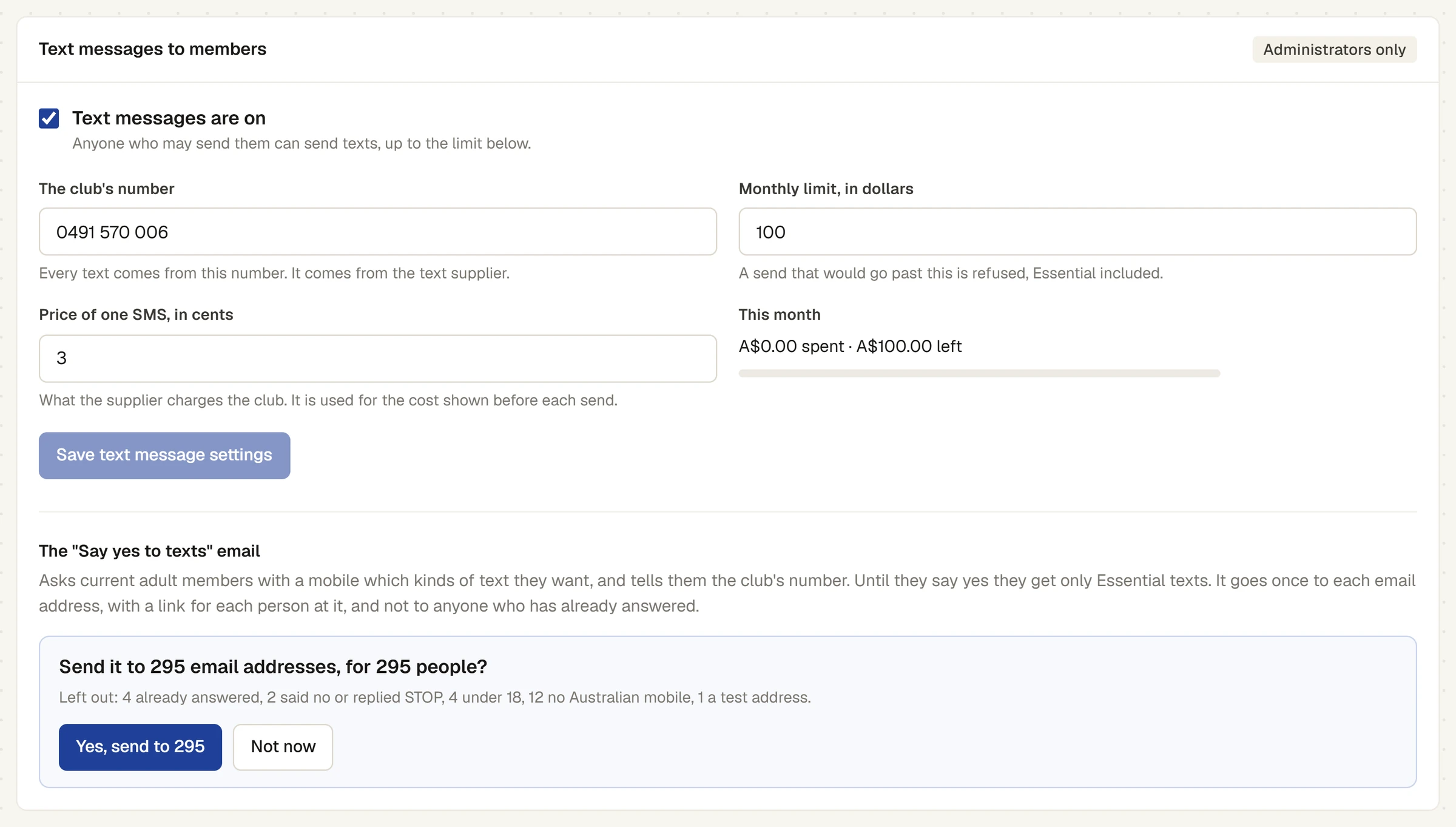
- Open and choose the Communications tab. Below the email settings is the card Text messages to members, marked Administrators only. The Text settings link on goes to it too.
- Tick Text messages are on. The line under it says Anyone who may send them can send texts, up to the limit below.
- In The club's number, type the number every text comes from. It comes from the text supplier.
- In Monthly limit, in dollars, type the most the club will spend in a month. A send that would go past this is refused, Essential included.
- In Price of one SMS, in cents, type what the supplier charges the club. It is used for the cost shown before each send. It can have a decimal, such as 3.3.
- Press Save text message settings. A message confirms it.
This month shows how much has been spent and how much is left, with a bar that turns to a warning near the limit.
While texts are off, the card says Text messages are off: nobody can send a text, and members are not offered any choices about them. The Communications page says Texts are switched off, so none can be sent.
Ask members to say yes
Members choose which kinds of text they get, and a member who has not said yes gets only Essential texts. The Say yes to texts email asks every current adult member with a mobile.
- Under The "Say yes to texts" email, press See who it would go to. It is greyed out until texts are on and saved.
- Read the question, for example Send it to 295 email addresses, for 295 people?, and the line under it saying who is left out: those who have already answered, those who said no or replied STOP, people under 18, people with no Australian mobile and test addresses.
- Press Yes, send to 295, or Not now.
It goes once to each email address, with a link for each adult at that address, and the email tells them the club's number. The link opens a page where they choose without signing in. See How members choose which texts they get. After sending, the card says when it was sent, by whom and to how many.
Check it worked
- On Communications, the Text messages card says On and shows what has been spent and what is left.
- Write a text and send yourself a test: see Write and send a text to members.
Change it later
Change the number, limit or price and press Save text message settings again. The limit can also be raised from the Send step of a text that is over it, which tells you how much is needed.
What to set up next
Staff texts about shifts have their own wording on the same tab and are separate from this: see Change email categories, the reply-to address and staff text wording.
Last checked in release 2026.10.31, on 31 October 2026.